Technology
5 Google Messages tricks to cut daily texting friction
· GlobeWire Daily Editorial Desk · Source: www.androidpolice.com
Summary
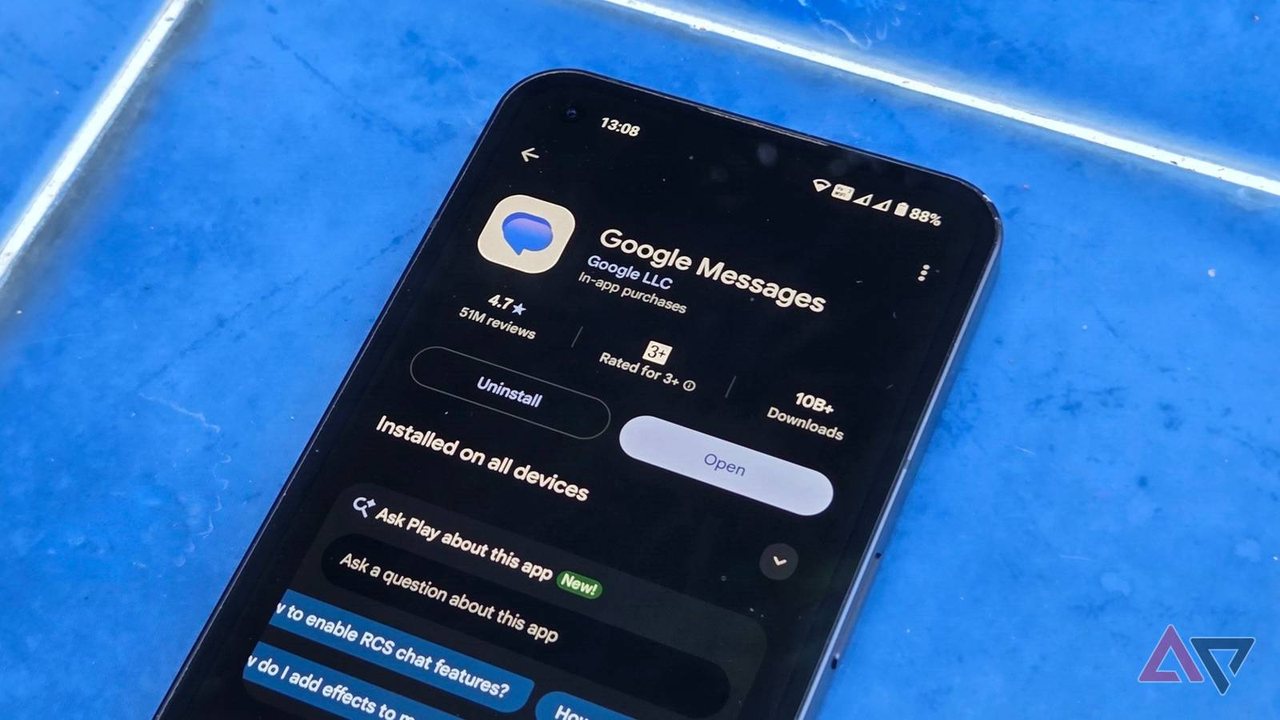
Google Messages now packs many features, but the overload can slow you down. Below are five practical tips—pinning chats, using search categories, customizing swipe actions, scheduling messages, and fine‑tuning notifications—that help you streamline the app without missing anything important.
1. Pin important conversations
- Press & hold a thread → tap the pin icon.
- Pinned chats stay at the top, sorted by the most recent message.
- Use it for family, work, banks or any service you need quick access to.
- You cannot reorder pinned chats manually; they follow last‑message order.
2. Star vital messages
- Long‑press a message → select Star.
- Starred items appear in a separate Starred category inside the search screen.
- Tap the star again to un‑star.
3. Search‑driven categories
- Tap the search icon to open the search bar; eight categories appear, including:
- Unread
- Known contacts
- Unknown contacts
- Media files
- Starred
- SIM‑specific chats (useful for dual‑SIM users)
- Type a keyword or select a category to jump directly to the relevant messages.
4. Customize swipe gestures
- Open Profile > Settings > Swipe actions.
- Assign one action to a right swipe and another to a left swipe (e.g., Trash on right, Mark as read/unread on left).
- For archiving, long‑press the chat and tap the archive icon; archived chats live under Profile > Archived.
5. Schedule messages & control notifications
- Draft a message, long‑press the Send button → choose a preset time (Tomorrow 8:00, 13:00, 18:00) or Pick date & time for custom scheduling.
- To mute noisy group chats, long‑press the conversation → Snooze (1 h, 8 h, 24 h, or Always).
- Enable only‑when‑mentioned alerts in the snooze submenu so you’re notified just when you’re tagged.
- Turn on automatic reminders via Settings > Suggestions & Actions > Nudges > Suggest message reminders.
- If important texts land in spam, lower protection: Settings > Protection & Safety > Standard protection.
Practical implications
- Faster access to critical chats reduces the chance of missing banking alerts or work messages.
- Search categories act as quick filters, saving time scrolling through long histories.
- Custom swipes let you clear or flag messages with a single gesture, keeping the inbox tidy.
- Scheduling ensures you respect others’ sleep cycles while still replying promptly.
- Notification tweaks prevent group‑chat overload while guaranteeing you see mentions.
How to verify
All steps are built‑in to the Google Messages app (version 2024‑xx or later). Open the app, follow the menu paths described, and you should see the options. If any setting is missing, ensure the app is updated via the Play Store.
--- *Source: Android Police article “5 Google Messages tricks that cut down my daily texting friction.”*
Share this article
Read the original source 5 Google Messages tricks that cut down my daily texting friction
More to read
 Google Search Adds Easter Egg Following Robert Pattinson James Bond Casting Announcement
 Google Announces Plans to Retire Nest App and Speaker Assistant by 2027
 Google Assistant Scheduled to End on Smart Speakers and Displays in August 2027
 Google Health 5.13 Rolling Out With Swimming Controls and Food Search Updates