How to Optimize Audio Quality on Android Devices Using Wired and Wireless Headphones
· GlobeWire Daily Editorial Desk · Source: www.engadget.com
Image: www.engadget.com
Getting the best possible sound from an Android phone involves understanding how the operating system processes audio signals, choosing the right playback hardware, and selecting compatible streaming or local player applications. While default settings satisfy most everyday listeners, enthusiasts can take additional steps to refine their listening experience.
Understanding the Android Audio Pipeline
Android routes audio through a complex system path known as the signal chain. When music plays, it moves from the source app to the operating system, where a service called AudioFlinger handles sampling, mixing, and downmixing.
- System Processing: By default, Android processes audio in 32-bit floating point and outputs at 48kHz with 16 or 24 bits of depth.
- The Mixer: This layer can apply system effects, adjust volumes for notifications, or alter the audio signal before it reaches the hardware abstraction layer (HAL).
- Bit-Perfection: For listeners seeking absolute fidelity, bit-perfect audio aims to keep the signal mathematically identical to the source file by bypassing the Android mixer entirely. Android 14 introduced support for lossless USB audio to help facilitate direct pathways, provided the phone manufacturer, app, and DAC all support the necessary sample rates.
Wired Audio and DACs
Wired connections remain the most straightforward path to high-fidelity playback, avoiding wireless compression entirely.
- Using a DAC: Because modern smartphones generally lack traditional 3.5mm headphone jacks, users typically rely on a digital-to-analog converter (DAC) connected via the USB-C port to transform digital files into analog signals.
- Hardware Choices: DACs range from simple USB-C-to-3.5mm dongles to dedicated portable devices. Listeners often look for hardware capable of high-resolution decoding up to 32-bit at 96kHz.
Navigating Bluetooth Codecs
While traditional Bluetooth is lossy due to bandwidth limitations, modern wireless options can still deliver high-quality sound that is difficult to distinguish from wired connections in everyday environments.
- Standard Codecs: The default Sub-band Codec (SBC) and Advanced Audio Coding (AAC) handle standard streaming adequately.
- High-Resolution Codecs: Proprietary options like Qualcomm's aptX variants and Sony's LDAC offer significantly higher transfer rates. LDAC, integrated into the Android Open Source Project (AOSP), enjoys broad compatibility.
- Configuration: Activating high-res codecs may require checking companion apps, device Bluetooth settings, or toggling options within Android's developer settings.
Player Apps and Equalization
Choosing the correct media player and tuning audio profiles allows users to tailor their listening experience.
- Streaming Services: Platforms like Tidal, Qobuz, Apple Music, and Spotify offer varying tiers of lossless or high-resolution streaming.
- Dedicated Apps: Enthusiasts targeting bit-perfect playback often utilize local playback apps like USB Audio Player Pro or Poweramp.
- Equalization (EQ): While bit-perfect audio avoids digital signal processing (DSP), applying targeted EQ profiles can correct for a headphone's default frequency response. Tools like AutoEQ and background apps such as Wavelet help users apply custom or standardized equalization presets.
Practical Implications and Verification
To verify or improve audio performance on a specific Android device, users should review manufacturer specifications regarding internal DAC capabilities and supported Bluetooth codecs. To test adjustments, disable unwanted system-level sound enhancements, ensure streaming app quality settings match hardware capabilities, and verify that high-resolution outputs are properly enabled in system or developer menus.
AI-assisted reporting; source claims are attributed and have not been independently verified.
More to read
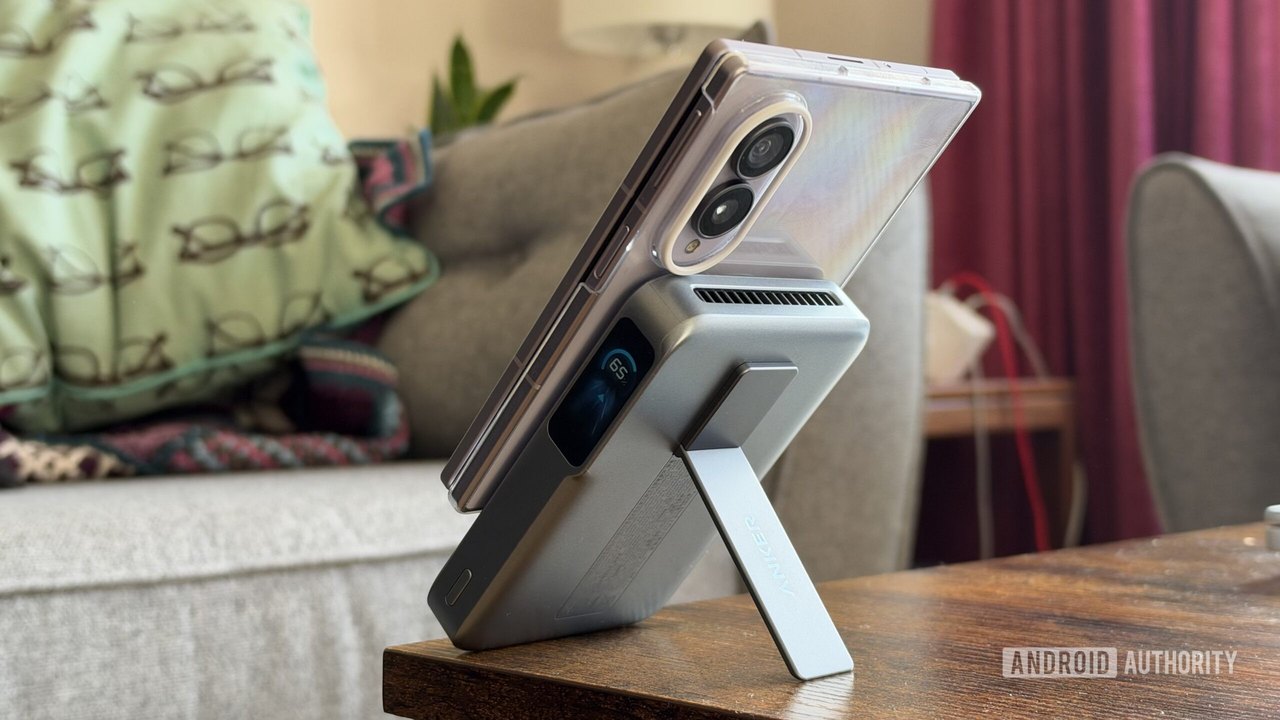 Anker’s MagGo Power Bank 2 Pro Offers Fast Qi2 Wireless Charging but Favors iPhone Over Android, Review Finds
 South Africa Seal Test Series Against Australia in Cape Town
 OpenAI CEO Sam Altman Meets Samsung Executives in South Korea to Discuss AI and Infrastructure
 South Africa Dethrones Australia to Claim ICC Men's Test Team Rankings Summit
Trending on GlobeWire Daily
Selected from recent coverage and related topics; not live search rankings.
 Pakistan Prime Minister Faces Social Media Scrutiny Following Hong Kong Sixes Win
 Open‑Source ‘It’s a Plan’ Offers Self‑Hosted Project Management with AI Agents
 Delhi Cyber Cell Investigates High School Student Over 17 Lakh Life Certificate Fraud APKSouth Africa Seal Test Series Against Australia in Cape Town
 MGM+ Announces Four-Part Documentary Series 'New Wave' Detailing Music Evolution from 1977 to 1987South Africa Dethrones Australia to Claim ICC Men's Test Team Rankings Summit