Seedsow Lullaby Switch Demo: How to Install and Use the Lua Editor for Future Exploit Preparation
· GlobeWire Daily Editorial Desk · Source: github.com
Image: GitHub · Photo source · Resized and letterboxed to 16:9; no AI generation
Overview
The repository provides a Lua editor that lets you write, edit, and run Lua scripts inside the Seedsow Lullaby demo on Nintendo Switch (both Switch 1 and Switch 2). The tool is intended for users who want to experiment with custom save modifications or prepare for future exploits such as the anticipated Artemis exploit. The editor works with a controller, on‑screen grid, or a USB keyboard and can also edit ordinary text, hex, and save files stored by the game.
What You’ll Need
- A modded/hacked Switch 1 that can run homebrew and complete Nintendo’s online save transfer.
- Switch 2 (does not need to be modded, but must have the demo installed).
- The Seedsow Lullaby demo on both consoles.
- The ZIP file Seedsow-Lua-Editor-Save.zip (pre‑built, no source code required).
- JKSV (the Switch backup/restore utility) installed under CFW on the sysNAND used for the initial backup.
- A PC with Python 3.10+ and Tcl/Tk if you want the optional desktop companion.
Installation Steps
- Prepare Switch 1 (stock sysMMC)
- Start a new game, hold R until normal dialogue appears.
- Release R, press ZL to open the save menu, choose an empty slot and save.
- Boot CFW on the same sysNAND, use JKSV to back up that user’s save.
- Restore the editor save
- Using JKSV, restore the downloaded Seedsow-Lua-Editor-Save.zip to the same slot.
- Return to stock sysMMC (the internal storage is shared between stock and CFW modes).
- Transfer the demo save to Switch 2
- On both consoles, go to System Settings > Data Management > Transfer Your Save Data.
- Move the demo save of the same Nintendo Account user to Switch 2.
- Load and verify
- On Switch 2, load slot 1, fully close and restart the game, then reload it.
- If you only need preparation, you can stop here.
- Optional: Desktop companion
- Download Seedsow-PC-Companion-and-Source-VERSION.zip, extract, and run START WINDOWS.cmd (Windows) or the Terminal command on macOS.
- Use the companion to send files to a Raspberry Pi acting as a Bluetooth controller, or edit directly on the console.
Running Lua Scripts
- Open slot 1 in the editor, edit a program, then choose Save + publish into a user slot.
- Load that slot from the game’s menu to execute the script again.
- Keep recovery slots 1‑3 for safety. Compatible editor updates can be installed later in a fresh user slot.
Compatibility & Notes
- The project has not identified any incompatible game editions.
- Editing, saving, and running Lua require no Nintendo online connection once installed.
- Future firmware updates may affect preparation; stop before updating and consult the latest firmware guidance.
- The editor is built with AI assistance and hands‑on console testing—expect occasional rough edges.
How to Verify the Original Announcement
- Check the repository’s README and release notes for the exact version (e.g., 0.1.3) and the commit date (2026‑6‑7).
- Verify that the ZIP file matches the hash listed in the source repository.
- Ensure the demo save is linked to the same Nintendo Account used to download the editor.
Keywords (for SEO)
- Seedsow Lullaby Lua editor
- Switch demo save transfer
- JKSV backup restore
- homebrew Lua scripting
- future Artemis exploit prep
AI-assisted reporting; source claims are attributed and have not been independently verified.
More to read
 PhotoCraft Launches as Open‑Source Photoshop‑Like Editor Built Entirely in Rust
 New Android 'SMS of Death' Exploit Can Remotely Crash Unpatched Phones
 Switch Brings Open-Source AI Teammates Into Existing Chat Platforms
 OpenPencil launches AI‑native open‑source design editor as a Figma alternative
Trending on GlobeWire Daily
Selected from recent coverage and related topics; not live search rankings.
 Harley-Davidson XA: Specifications & buying guide
 Harley-Davidson Model W: Specifications & buying guide
 WEY Mocha: Specifications, variants & buying guide
 Ford Mondeo Sport: Specifications, variants & buying guide
 Nokia Lumia 1520: Specifications & buying guide
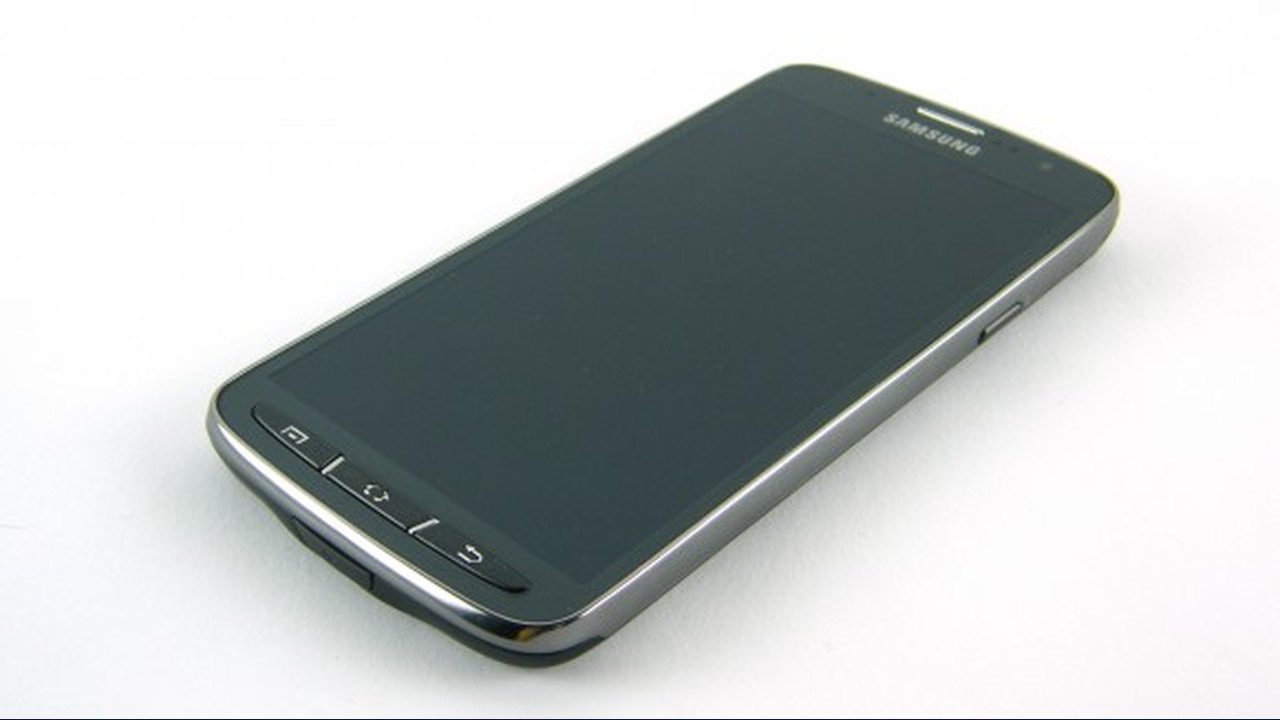 Samsung Galaxy S4 Active: Specifications & buying guide