You Don't Need a Foldable Phone to Use Split Screen on Android
· GlobeWire Daily Editorial Desk · Source: www.engadget.com
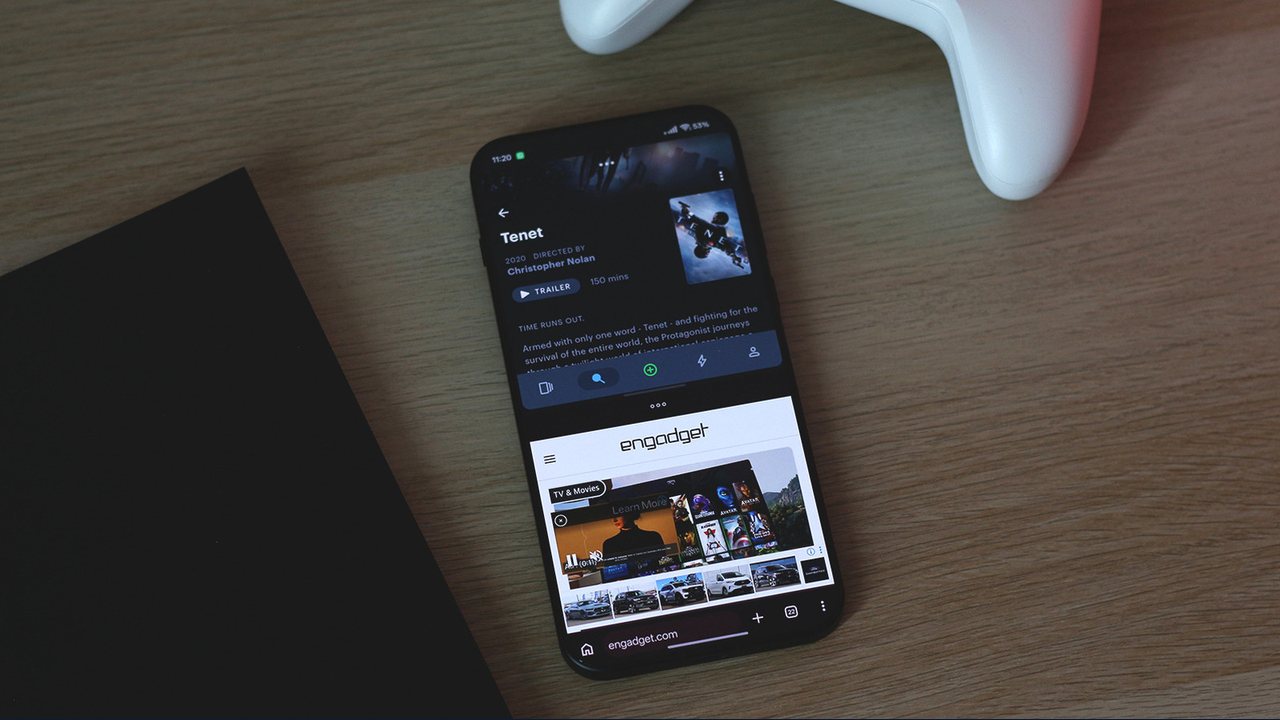
Split screen multitasking is a widely available feature on traditional slab-style Android phones, meaning users do not need to purchase an expensive foldable device to run two apps simultaneously.
While folding phones are often marketed for productivity and multi-window capabilities, split screen functionality has been built into Android for years. According to reports, the feature has been part of the operating system since Android 7.0 Nougat, following early testing in Android 6.0 Marshmallow.
How to Enable Split Screen on Standard Android Phones
While activation steps may vary depending on the device manufacturer and software version, most modern Android smartphones—including devices from Google, Samsung, and Motorola—allow users to access split screen through the recent apps interface:
- Gesture Navigation: Swipe up from the bottom of the screen and hold.
- Three-Button Navigation: Tap the Recents button.
- Activation: Locate the open app you want to use, tap its app icon, and select the Split Screen option from the menu.
- Selection: Choose a second app to open alongside the first.
- Adjustment: Drag the divider in the middle of the screen to resize the app windows, or drag it all the way to the edge to exit the mode.
Additional Multitasking Features
Traditional slab phones generally limit users to a maximum of two apps in split screen view, whereas larger foldable devices can accommodate three or more apps at once. However, Android also supports alternative multitasking options, such as floating windows:
- Floating Windows: Allows an app to run in a resizable window on top of another application.
- Manufacturer Variations: Google Pixel devices running Android 17 offer "Bubbles" (collapsing into chat heads), Samsung features "Pop-up view," and brands like OnePlus and Oppo use the "Floating Windows" label.
Troubleshooting Split Screen and Unsupported Apps
Not all applications support multi-window setups. When compatibility is lacking, the split view option may appear greyed out or missing entirely. Users can check the Google Play Store for app updates to see if newer versions introduce support.
For stubborn apps, advanced users sometimes turn to a hidden workaround via the Developer Options menu:
- Unlock Developer Options: Go to Settings > About, find the Build Number entry, and tap it seven times. Enter your PIN or password when prompted.
- Enable Force Resizable: Navigate to Settings > System > Developer Options and toggle on Force activities to be resizable.
Note that this workaround does not guarantee unsupported apps will function correctly in split screen mode, and modifying Developer Options should be done with caution to avoid affecting device stability.