Simple Settings to Make Your Amazon Kindle Feel More Like a Physical Book
· GlobeWire Daily Auto Desk · Source: www.engadget.com
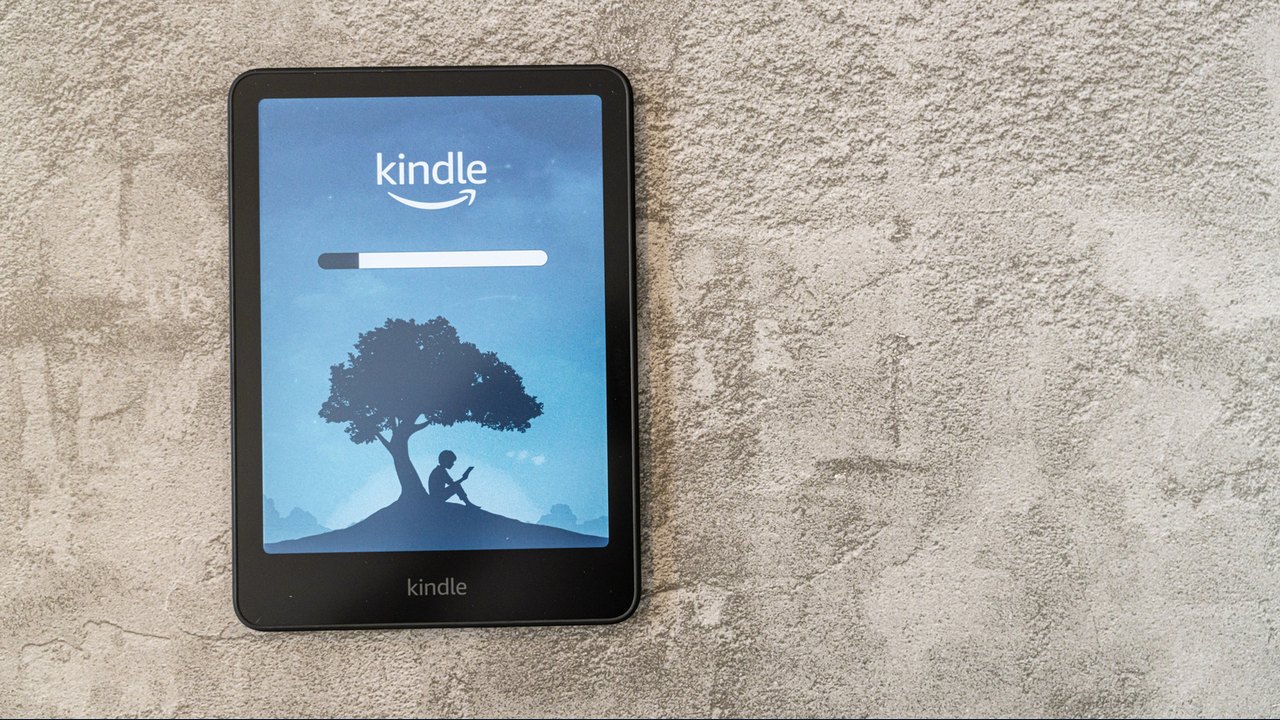
Image: Engadget · Photo source · Resized and letterboxed to 16:9; no AI generation
While digital readers offer convenience, many users find the experience lacks the tactile charm of traditional print. By adjusting built-in settings and utilizing external accessories, you can customize your Amazon Kindle to create a more immersive and book-like reading environment.
Customizing the Display
- Choose Serif Fonts: Access the 'Aa' menu while reading. Under 'Font Family,' select classic serif options like Baskerville or Palatino to mimic the appearance of printed pages.
- Optimize Layout: Navigate to the 'Layout' tab under the 'Aa' menu. Enabling landscape mode alongside a two-column view can simulate the feel of reading a physical open book.
- Adjust Margins and Weight: Increase the margins to narrow the text block and adjust the font weight to make text appear bolder and more print-like.
Lighting and Navigation
- Warmth and Brightness: Tap the top of your screen to open 'Quick Actions.' Reducing brightness and increasing the warmth setting can reduce the digital 'harshness' of the screen, providing a more paper-like glow.
- Page Transitions: On supported devices like the Kindle Colorsoft, Paperwhite, and Scribe, enable page-turn animations. This creates a gentle transition between pages that enhances the immersive reading experience.
Physical Enhancements
If software adjustments are insufficient, physical cases designed to look like vintage or classic book covers can provide the weight and tactile satisfaction often missing from digital hardware. You can verify your device's specific support for these features by checking the 'Settings' or 'Help' sections on your Kindle or via the official Amazon support website.
AI-assisted reporting; source claims are attributed and have not been independently verified.
More to read
 Essential Security Settings to Protect Your Google Account
 Amazon Australia Launches Black Friday Discounts on Kindle E-Readers
 Got an iPhone Duo? These 9 Settings Make It Easier to Use
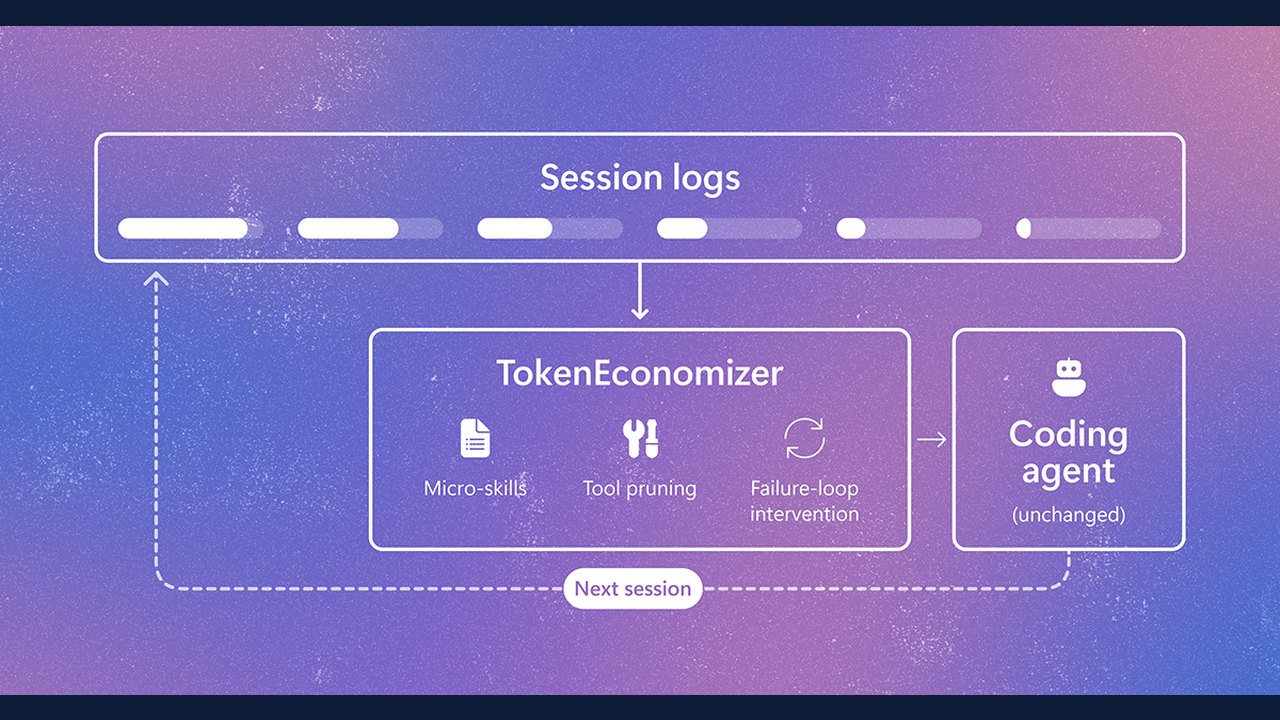 TokenEconomizer Plugin Aims to Make AI Coding Agents More Efficient Using Past Session Experience