Got an iPhone Duo? These 9 Settings Make It Easier to Use
· GlobeWire Daily Editorial Desk · Source: techcrunch.com
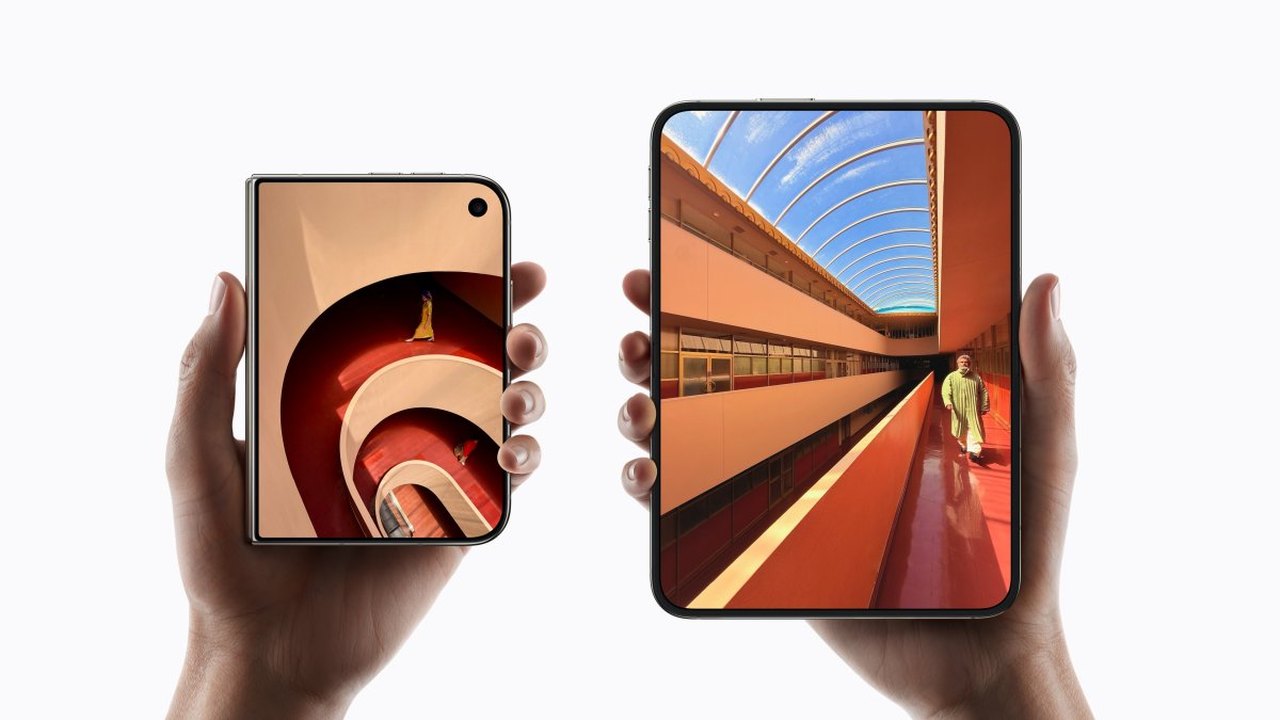
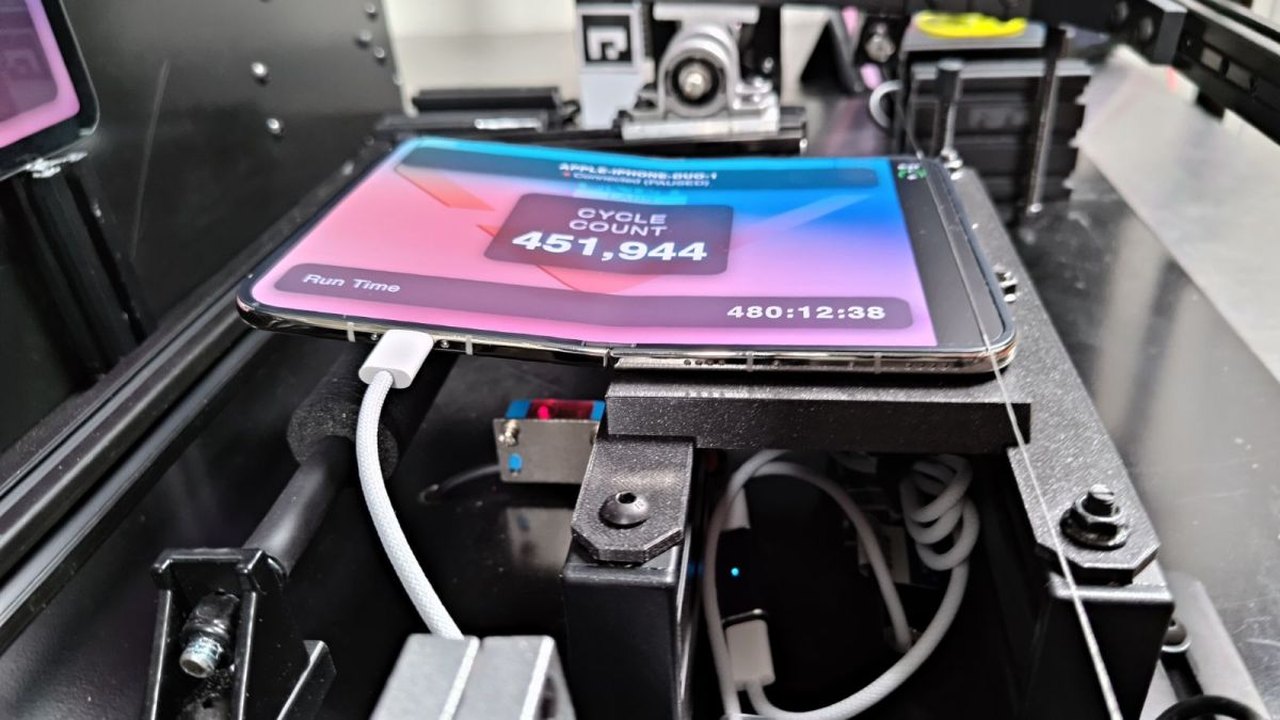
Image: Sarah Perez · Photo source · Resized and letterboxed to 16:9; no AI generation
Apple’s new foldable device, the iPhone Duo, has reportedly experienced high demand since its release. Because the Duo lacks Face ID and introduces a unique folding form factor, adjusting certain settings can help users navigate everyday tasks like unlocking the device, taking screenshots, and managing camera controls.
Here are nine recommended settings adjustments to improve the iPhone Duo experience, based on reported user tips and accessibility options.
Touch ID and Authentication Adjustments
- Register Extra Fingerprints: Since the Duo can be held in multiple orientations and features a smaller screen size, users may want to register multiple fingerprints and thumbs from both hands. This can be configured under `Settings > Touch ID & Passcode > Add a Fingerprint`.
- Unlock with Apple Watch: Users who own an Apple Watch can set it up to unlock the Duo automatically, reducing the need to rely strictly on Touch ID. This option is located under `Settings > Touch ID & Passcode > Unlock with Apple Watch`.
- Rest Finger to Open: An accessibility feature that allows users to rest their finger lightly on the sensor to unlock the device instead of pressing down. This can be enabled via `Settings > Touch ID & Passcode > Rest Finger to Open`.
Navigation and Usability Settings
- Turn Off Fixed Volume Controls: By default, volume buttons remain fixed regardless of device orientation. Disabling this keeps volume controls reoriented based on how the phone is held. This can be toggled under `Settings > Sounds & Haptics > Fixed Position Volume Controls`.
- Back Tap for Screenshots: To avoid using button combinations for screenshots, users can configure a double or third tap on the back of the device via `Settings > Accessibility > Touch > Back Tap`.
- Reachability: Designed to help with one-handed use on wide devices, Reachability allows users to swipe the left or right edge of the screen to bring the far side into reach. It is enabled by default and can be managed under `Settings > Accessibility > Touch > Reachability`.
- Lock When Folded: Users can create a custom automation shortcut using the Shortcuts app to automatically lock the screen when the device is folded closed.
Camera Customizations
- Customize Camera Controls: Users can rearrange and select which camera tools appear above the frame for quick access by opening the Camera app and using the six-dot Camera Controls menu.
- Disable Smart Take Flash: The Smart Take feature uses automatic motion detection for group or solo photos, but it blinks the flash by default upon capture. This flash behavior can be turned off by going to `Settings > Camera > Flash During Capture`.
To verify these features, check your device's software version and review official Apple support documentation.
AI-assisted reporting; source claims are attributed and have not been independently verified.
More to read
 Trying an iPhone Duo at the Apple Store? Don’t Leave Without Testing These 6 Things
 Apple Expands Self Service Repair Program to Include iPhone Duo
 Over 200,000 Apps Now Optimized for the iPhone Duo, Apple Reports
 Apple's iPhone Duo Hinge Shows First Signs of Wear After Over 451,000 Folds in Testing