Automobiles
That Tiny Clock on Your Samsung Phone: Alarm, Update, or Light Mode?
· GlobeWire Daily Editorial Desk · Source: www.engadget.com
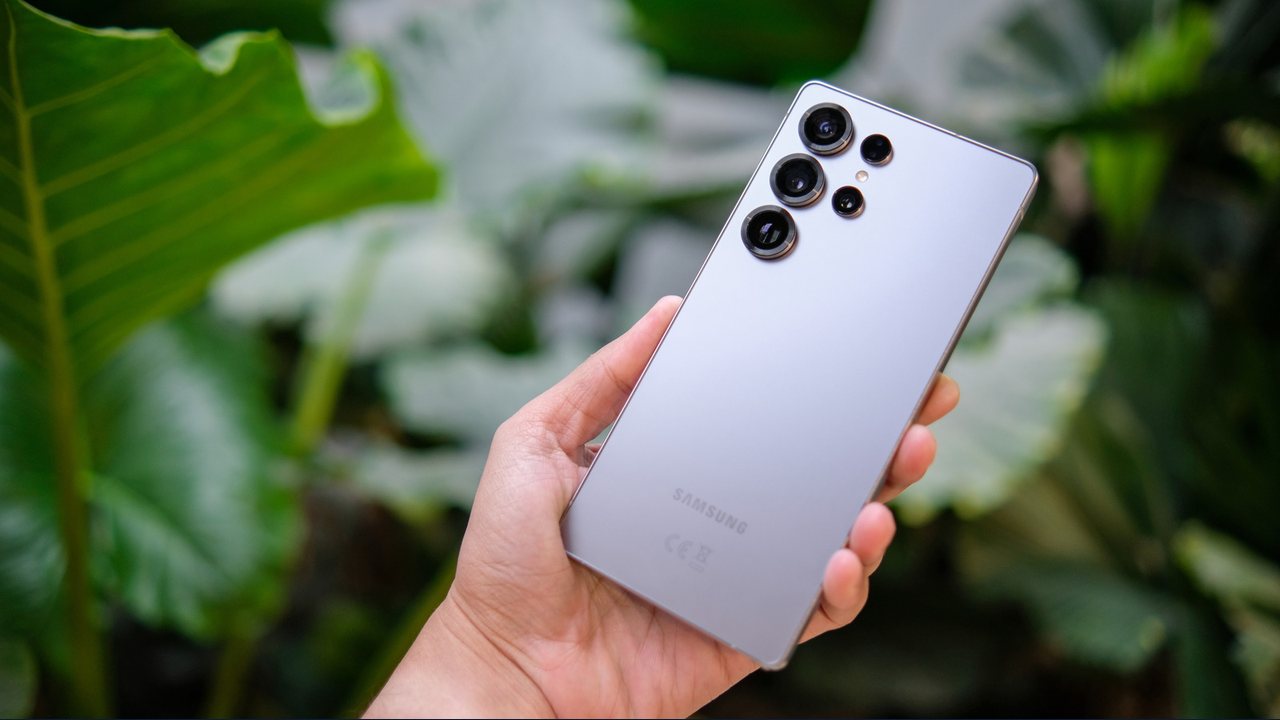
A clock-like icon in a Samsung Galaxy status bar is usually not a malfunction. According to Engadget, it most often signals an active alarm, but a rounded-square clock can mean a software update, and a speedometer-like symbol with a leaf indicates Light performance mode.
Most likely: an active alarm
- The icon usually points to an alarm set through Samsung’s Clock app, not another tool. When the full Quick Settings panel is expanded, it appears next to the Wi-Fi signal.
- Per the clock settings, the icon becomes visible 30, 15 or five minutes before the alarm rings. In Engadget’s testing, it also appeared at the 20- and 10-minute markers.
- Swiping down the notifications panel may show a message asking whether to turn off the upcoming alarm. Dismissing that notification leaves the clock icon next to the Wi-Fi signal; it returns as the alarm time approaches.
- To remove the icon completely, open the Clock app, tap the Alarm tab and toggle off or delete active alarms. The icon disappears from the status bar immediately.
Rounded square with a clock: update available
- A rounded square containing a small clock means a new software update is available. It may appear after repeated update prompts have been ignored.
- The only way to dismiss it permanently is to install the update. Go to Settings, scroll to Software update and select Check for updates.
- The source says One UI 9 is currently rolling out to more Samsung Galaxy phones; for some older phones, it is the final major update.
Speedometer with a leaf: Light performance profile
- This icon is found only on newer Samsung flagships, such as Galaxy Z Flip 4 and later, Galaxy Z Fold 4 and later, and Galaxy S23 and later models. It looks more like a speedometer than a clock and includes a small white leaf.
- Light performance mode reduces power consumption by lowering processing speed, which can help extend battery life. It is useful for social media scrolling or video watching.
- Starting a game automatically disables the mode. If it was turned on by accident, swipe down from the top of the screen and tap the Quick Settings tile again.
How to verify and what remains unclear
- Check the Clock app’s Alarm tab, Settings > Software update and the Quick Settings tiles to confirm which icon you are seeing.
- This summary is based on Engadget’s report and does not include independent testing. Icon appearance can vary by model and software version.
- If the icon remains after alarms are disabled or an update is installed, consult Samsung support or the device’s settings. For the original details, read the Engadget article and check Samsung’s on-device menus.
- The icon is rarely a cause for concern, unless an unexpected early alarm is the issue.
Share this article
Read the original source What the little clock icon at the top of your Samsung phone means