Automobiles
How to Minimize One UI on a Samsung Phone Without Removing It
· GlobeWire Daily Editorial Desk · Source: www.engadget.com
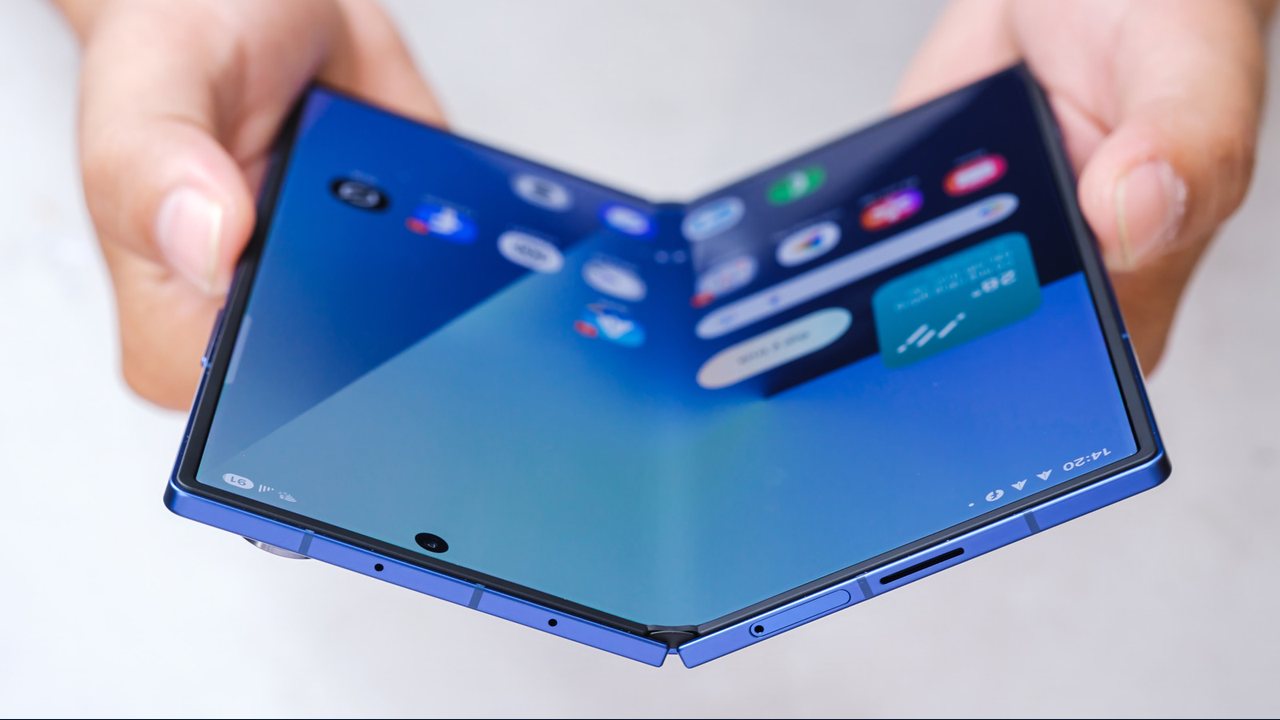
Samsung’s One UI is built into every recent Galaxy phone and tablet. While it can’t be fully uninstalled, users can reduce its visibility and bloat by changing the launcher and disabling or hiding pre‑installed apps.
Changing the Launcher
- Install a third‑party launcher (e.g., Niagara Launcher, Smart Launcher) from the Play Store.
- Open Settings → Apps → Default apps and set the new launcher under Home app.
- The new launcher replaces the One UI Home screen, giving a different look and feel.
Using Samsung’s Good Lock
- Good Lock is an official Samsung app that adds deep customization without replacing the launcher.
- It lets you tweak the lock screen, quick panel, and home‑screen modules, which can make One UI feel less intrusive.
Hiding or Disabling System Apps
- Many Samsung‑bundled apps are “system apps” and cannot be fully removed, but they can be hidden or have updates uninstalled.
- Go to Settings → Apps, search for the app, and:
- Tap Uninstall if the option appears (e.g., Samsung Notes).
- Otherwise tap the three‑dot menu → Uninstall updates to reduce its footprint.
- To keep icons off the home screen, use Settings → Home screen → Hide apps on Home and Apps screen and select the unwanted apps.
Practical Implications
- Changing the launcher is reversible; you can switch back at any time.
- Hiding apps does not free the underlying storage, but it declutters the UI.
- Good Lock requires Android 11 or later on supported devices; check Samsung’s official page for compatibility.
How to Verify
- Samsung’s support site lists supported launchers and the Good Lock app.
- The Settings → Apps menu shows which apps can be uninstalled versus only have updates removed.
- Community forums (e.g., XDA‑Developers) often share step‑by‑step screenshots for these tweaks.
--- *This article summarizes publicly available guidance and does not claim any proprietary Samsung statements.*
Share this article
Read the original source Can you completely remove One UI from a Samsung phone?