How to Access Your Raspberry Pi Remotely Using Raspberry Pi Connect Without Port Forwarding
· GlobeWire Daily Editorial Desk · Source: www.engadget.com
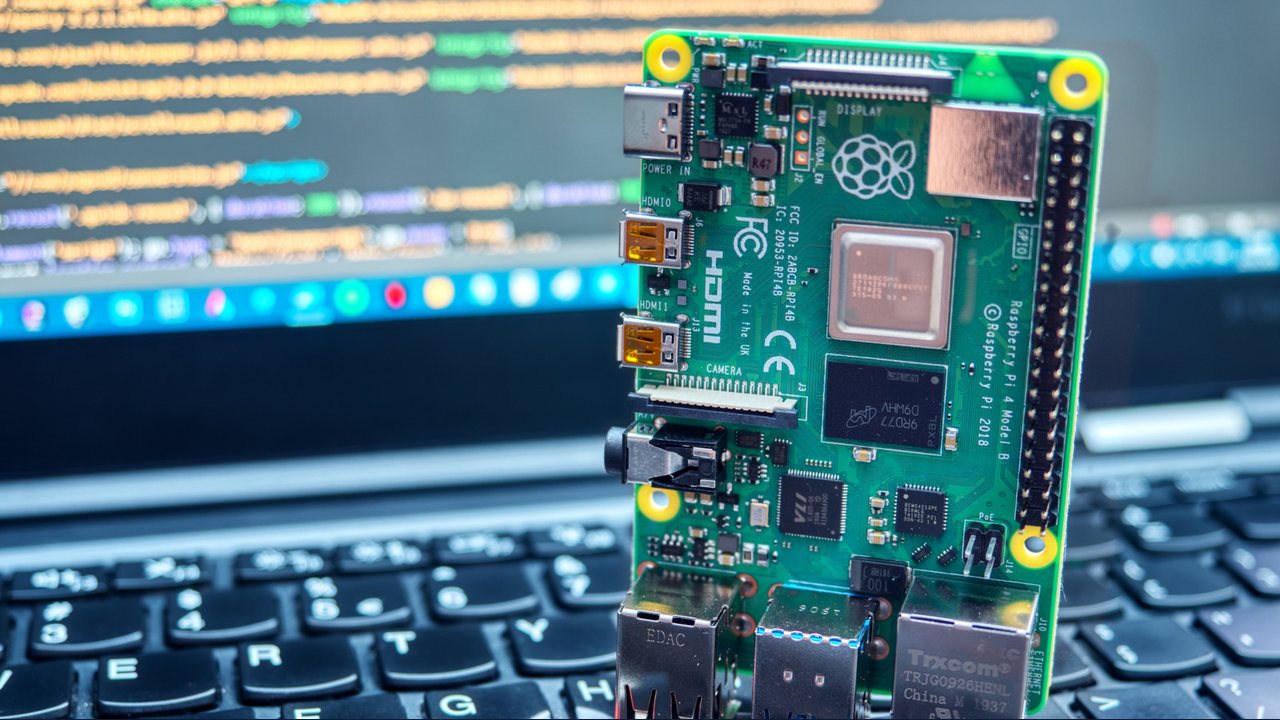
Raspberry Pi Connect provides a convenient way to access your Raspberry Pi remotely over the internet without configuring traditional port forwarding or SSH tunneling.
Traditionally, remote access to a Raspberry Pi often required setting up a VNC service or SSH tunneling. While effective, these methods typically involve port forwarding, which can present setup challenges for beginners and potential security considerations for certain projects. Raspberry Pi Connect offers an alternative method designed to bypass these requirements.
How Raspberry Pi Connect Works
The utility leverages WebRTC to establish a peer-to-peer connection through a secure tunnel between web browsers. According to available details, this design allows the software to bypass strict firewalls and restricted NATs without requiring third-party software on the Pi unit itself.
Key features offered by the tool include:
- Remote Shell: Operates as a browser-based SSH terminal, suitable for running commands or monitoring activity remotely.
- Screen Share: Turns your web browser into a remote desktop for your Raspberry Pi, utilizing a Wayland session and an active desktop session.
System Compatibility and Requirements
Compatibility varies depending on the software version and device setup:
- Operating System: Works automatically on devices running Raspberry Pi OS Bookworm or later. Older devices running Raspberry Pi OS or its Lite variant can also be configured.
- Screen Sharing Limitations: Requires an updated Pi OS running a Wayland session. Pi OS Lite and X11 environments are reported as incompatible with the screen-sharing feature.
- Account and Internet: Requires an active internet connection and a Raspberry Pi Connect account.
Installation and Setup Steps
To use the tool, users must install the software package on their Raspberry Pi and link the device to an account.
- Choose a Package:
- For full functionality (including screen sharing), install the standard package by running `sudo apt install rpi-connect` in an SSH terminal.
- For remote access only, install the lite package by running `sudo apt install rpi-connect-lite`.
- Enable Access: Run `rpi-connect on` in the terminal to enable internet access for the service.
- Link the Device: Visit connect.raspberrypi.com, sign in to or create a Raspberry Pi account, and follow the official "Get Started" instructions on the Raspberry Pi website to link the unit.
- Connect: Log in to your account, select the "Connect via" button, and choose your preferred connection method.
Practical Implications and Verification
Utilizing this tool can simplify home projects by removing the need for manual router port configurations. To verify official installation instructions, compatibility updates, and security guidance, users should consult the official Raspberry Pi documentation and website directly.