Apps & Software
How to Find Which GPU Is Inside Your Windows PC
· GlobeWire Daily Editorial Desk · Source: www.engadget.com
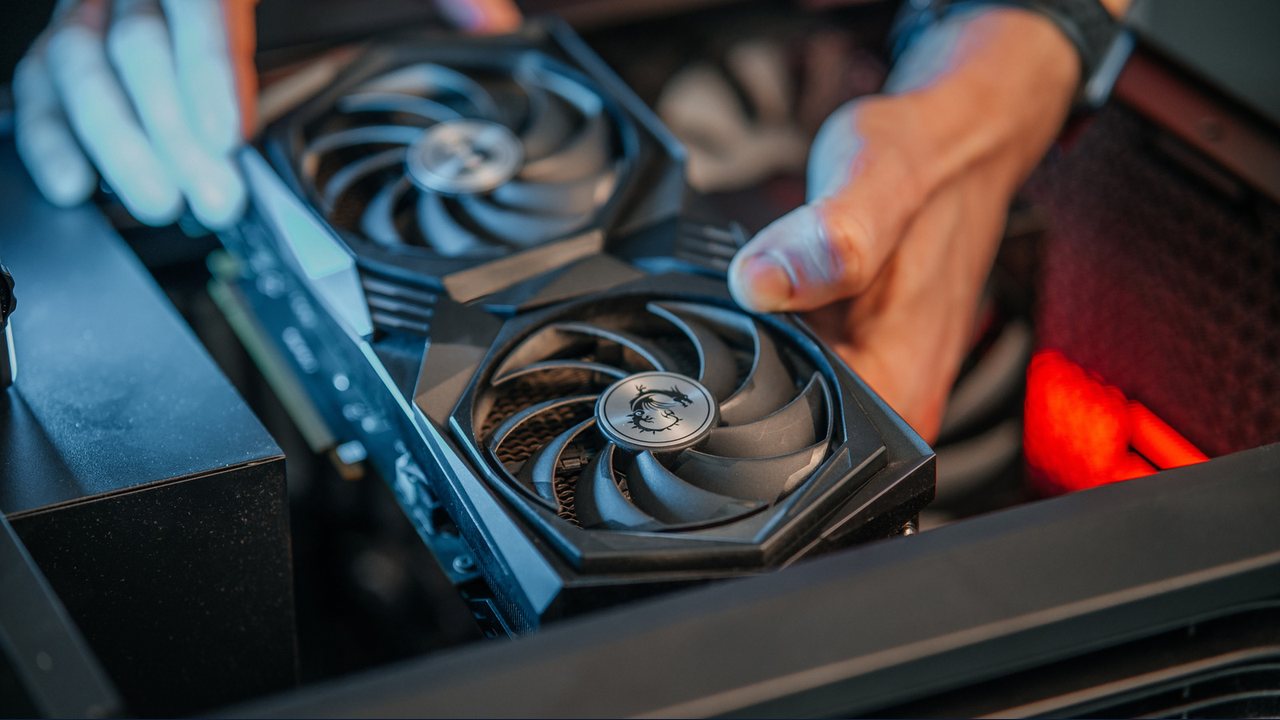
Knowing the graphics hardware inside a Windows computer helps verify game requirements, troubleshoot system performance, and evaluate whether an upgrade is needed. Reports indicate that built-in Windows tools can identify graphics hardware without requiring external software or physical inspection.
Checking Your GPU in Task Manager
Windows Task Manager provides hardware details in the Performance section.
- Open Task Manager using the shortcut `Ctrl + Shift + Esc`.
- Select the Performance tab (located on the left sidebar in Windows 11 or at the top in Windows 10).
- Click GPU 0 to view the model name in the upper-right corner. Review any additional entries like GPU 1 if present.
- Hardware location determines GPU numbering rather than performance level or workload assignment.
- Dedicated and shared GPU memory, driver details, DirectX information, and temperature readings (if supported) appear beneath the performance graphs.
Using Device Manager and the DirectX Diagnostic Tool
Alternative built-in utilities offer text-based system details.
- Device Manager: Right-click the Start button, select Device Manager, and expand Display adapters to view all graphics devices. Double-click a device and select the Driver tab to check version numbers and dates. If the list shows "Microsoft Basic Display Adapter," Windows is running a generic driver.
- DirectX Diagnostic Tool: Press `Windows + R`, type `dxdiag`, and press Enter. The Display tab details the GPU and drivers, while the System tab shows the installed DirectX version.
Third-Party Monitoring Tools
Third-party applications such as HWiNFO can track GPU temperatures, clock speeds, and power readings.
Verification of these steps can be performed directly within any Windows 10 or Windows 11 operating system environment.
Share this article
Read the original source Where you can find which GPU you have in your Windows PC