The Apple Maps CarPlay Feature That Shares Your ETA Automatically
· GlobeWire Daily Auto Desk · Source: www.engadget.com
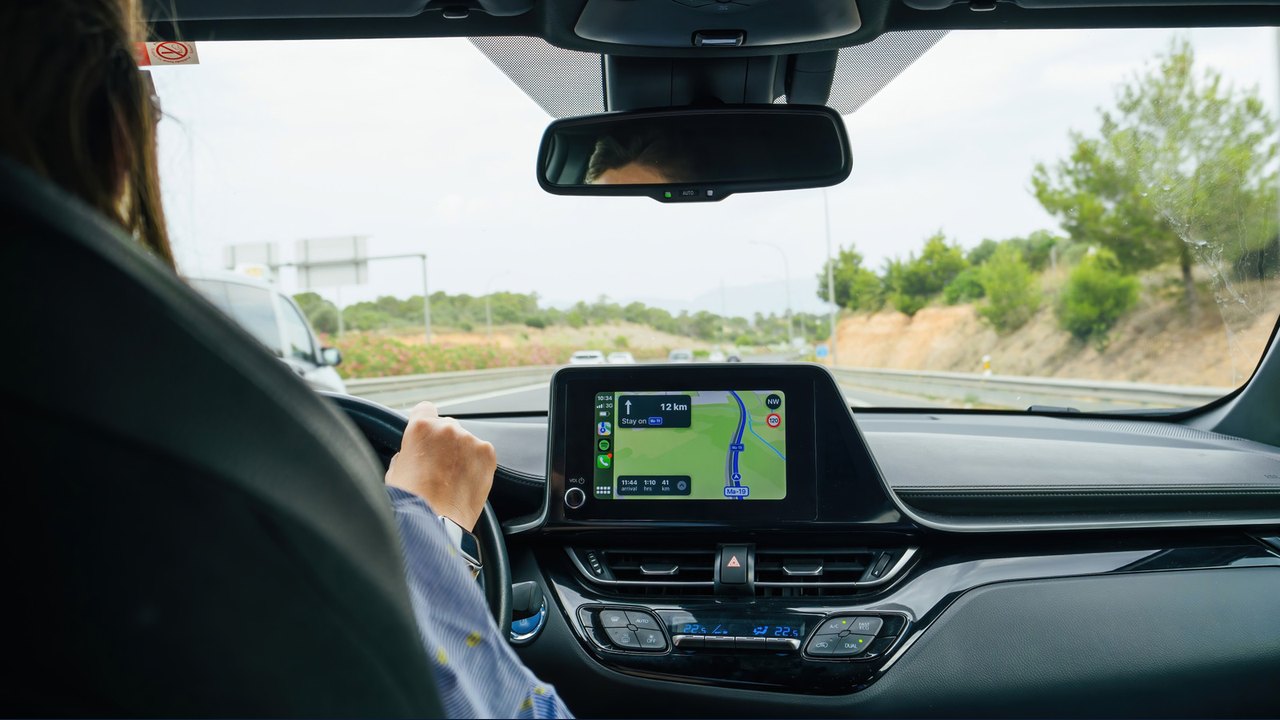
Image: Engadget · Photo source · Resized and letterboxed to 16:9; no AI generation
Apple Maps includes a built-in feature designed to help drivers share their estimated time of arrival (ETA) directly through CarPlay. While many iPhone users are familiar with third-party messaging or general location-sharing apps, the Share ETA tool integrated within Apple Maps offers a straightforward method to keep family and friends updated on travel progress without requiring manual text messages while driving.
How to Enable Share ETA
Before using the feature on your vehicle's infotainment display, you must configure the settings on your iPhone:
- Open the iPhone Settings app.
- Navigate to Apps and select Maps.
- Scroll down to find Share ETA and enable the feature.
- Ensure location sharing permissions are allowed for Messages, Contacts, and Find My.
- Optionally, enable Siri to support hands-free voice commands.
Methods for Sharing Your ETA
Drivers can initiate ETA sharing using either voice commands or manual touchscreen controls once a route is active.
- Using Siri: While following active directions in Apple Maps, activate Siri using your steering wheel control or by saying "Hey Siri" if supported, then state, "Share my ETA with [contact name]."
- Manual Touchscreen Control: Tap the route card at the bottom of the display screen, select Share ETA, and choose a recipient from the list or via Open Contacts.
- Automated Sharing: Add a contact to a pinned location by going to Maps > Places > Pinned, tapping the blue information button, selecting Add Person, and choosing a contact. This automatically shares your ETA whenever you select that pinned destination and tap Go.
Practical Implications and Verification
Utilizing built-in navigation tools can reduce distractions compared to manually typing messages behind the wheel. However, availability may vary depending on iOS software updates, vehicle compatibility, and cellular network connectivity. Users should consult official Apple support documentation or check their device settings to verify feature availability and privacy controls before relying on location-sharing tools during transit.
AI-assisted reporting; source claims are attributed and have not been independently verified.
More to read
 How to Set Up Apple CarPlay for the First Time: Wired and Wireless Methods Explained
 Apple Maps Introduces Major Upgrade in India with 3D Landmarks and Enhanced Navigation
 Why Your Apple Pie Has a Soggy Base and How Baking Experts Recommend Fixing It
 How to Start Volunteering: Breaking Down Misconceptions and Finding Roles That Fit Your Life