Troubleshooting Steps When Your PC Fails to Recognize an External Drive
· GlobeWire Daily Auto Desk · Source: www.engadget.com
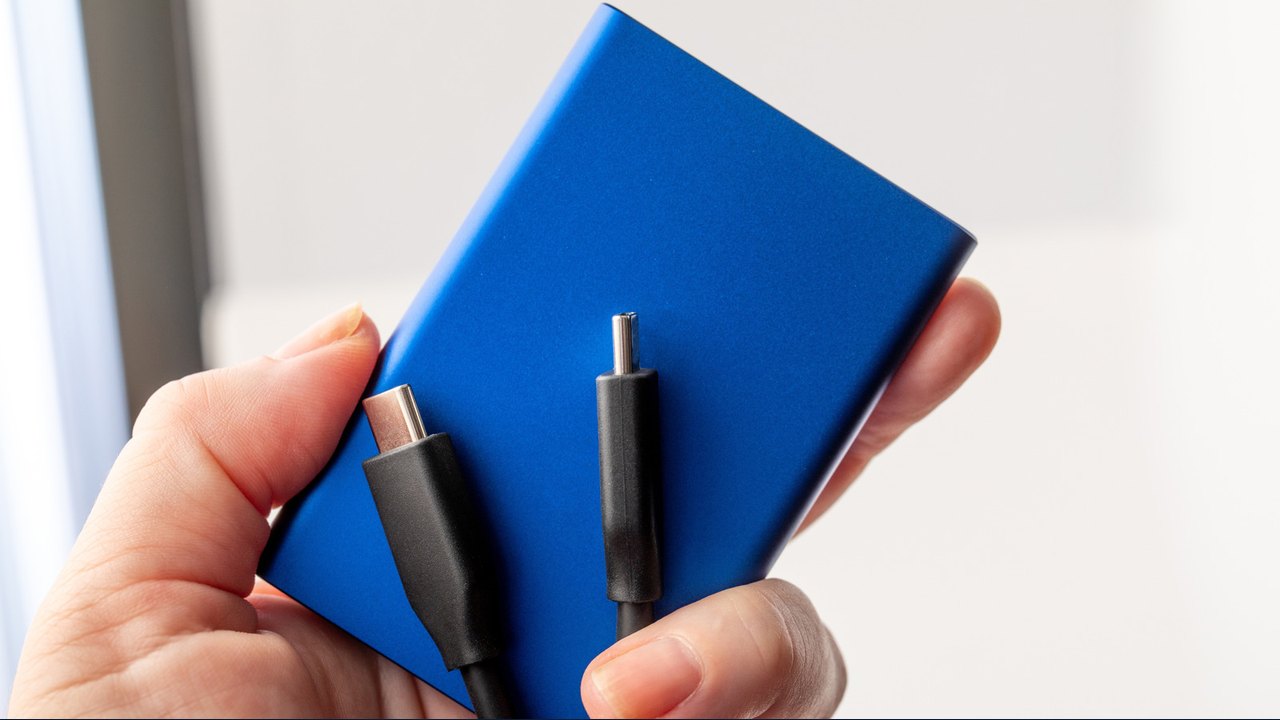
Image: Engadget · Photo source · Resized and letterboxed to 16:9; no AI generation
When an external hard drive fails to mount or is not recognized by a computer, users can attempt several non-invasive troubleshooting steps before assuming the device is permanently damaged. It is recommended to first rule out hardware issues by testing different ports, swapping cables, or ensuring external power adapters are correctly connected.
Hardware and Connection Checks
- Try a different USB or Thunderbolt port on the computer.
- Replace the connection cable to eliminate potential cable failure.
- Verify that any external power supply is connected, as some ports may lack sufficient power.
- Test the drive on a secondary computer to isolate whether the issue lies with the device or the machine.
Windows Troubleshooting
If the hardware seems functional, software adjustments may be required. In Windows 11, users can navigate to 'Device Manager' to see if the drive appears. If identified, checking 'Volumes' and 'Populate' can help. If no drive letter is assigned, manually assigning one in 'Disk Management' may restore access. For persistent errors, running the 'chkdsk [drive letter] /r' command in the Terminal can attempt to repair bad sectors. Note that reformatting the drive is a final resort that will erase existing data.
macOS Troubleshooting
Mac users should use 'Disk Utility' under 'View > Show All Devices'. Selecting the drive and clicking 'Mount' is the first step. If this fails, the 'First Aid' function can be used to repair file system errors without necessarily losing data.
Software and Driver Updates
Outdated drivers can also prevent detection. Ensure the operating system is fully updated through Windows Update or macOS Software Update. Windows users can also attempt to uninstall and reinstall drivers through the 'Device Manager' by restarting the computer.
If these steps fail, it is advised to contact the manufacturer or a professional data recovery service, especially if the data on the drive is critical.
AI-assisted reporting; source claims are attributed and have not been independently verified.
More to read
 Celebrating Karwa Chauth When Your Husband is in Another City
 DeepTutor Documentation Outlines Setup, Configuration, and Troubleshooting Guidelines for External Agents
 The Viral Soccer Toddler: When Digital Exposure Fails Children
 Apple AirPods won't connect to iPhone? Common causes and troubleshooting steps