How Disabling One Galaxy Watch Setting Can Extend Battery Life
· GlobeWire Daily Editorial Desk · Source: www.androidpolice.com
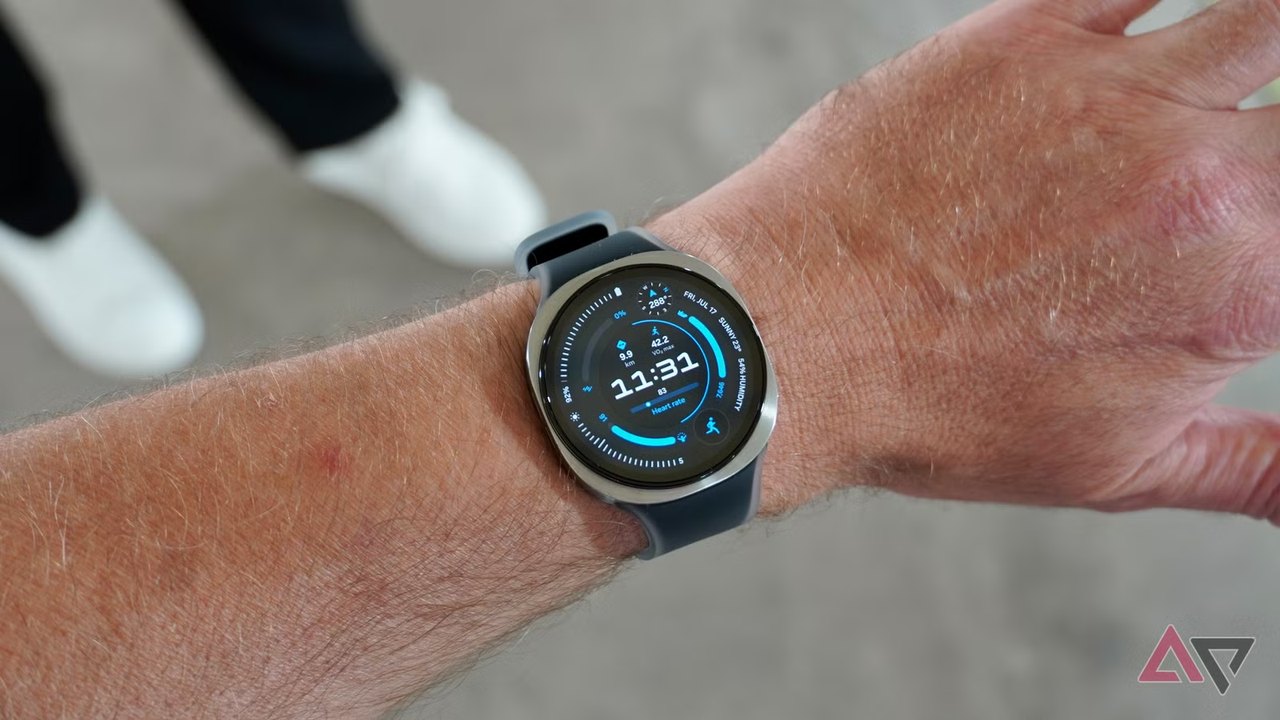
Image: Parth Shah · Source image rights not independently verified · Photo source · Cropped to 16:9; original source image
Optimizing Smartwatch Endurance
Battery endurance is a common consideration for everyday smartwatch users, particularly those utilizing compact variants with smaller physical battery capacities. A recent user analysis published by Android Police highlights how adjusting a single display setting on a Samsung Galaxy Watch can significantly impact daily battery longevity without sacrificing core functionality.
According to the published account, disabling the Always On Display (AOD) feature yielded an estimated six to eight hours of additional battery life on a 40mm Bluetooth Galaxy Watch model.
Practical Adjustments for Daily Use
While keeping the display active at all times provides immediate visibility, it can lead to higher power consumption on smaller battery sizes. To maintain usability without the AOD feature enabled, users can explore alternative wake settings built into the software:
- Raise wrist to wake: Illuminates the screen automatically when the user lifts their arm to check the time or notifications.
- Touch screen to wake: Allows the display to activate with a simple tap on the glass when gestures do not register.
By combining these built-in alternatives, users may retain quick access to notifications and health tracking features while reducing overall battery drain.
How to Verify and Test the Adjustment
Readers interested in evaluating their own device's battery usage can check system diagnostics directly on their hardware:
- Open the Galaxy Wearable app on a connected smartphone or navigate directly to the watch settings.
- Go to Settings, select Display, and locate Always On Display to toggle it off.
- Review the Battery menu in the settings to identify which features consume the most power over a standard 24-hour cycle.
Individual results will vary depending on cellular connectivity, screen brightness, active fitness tracking, and notification frequency. Users should consult official Samsung support documentation or device menus to explore specific power management options available for their exact model.
AI-assisted reporting; source claims are attributed and have not been independently verified.
More to read
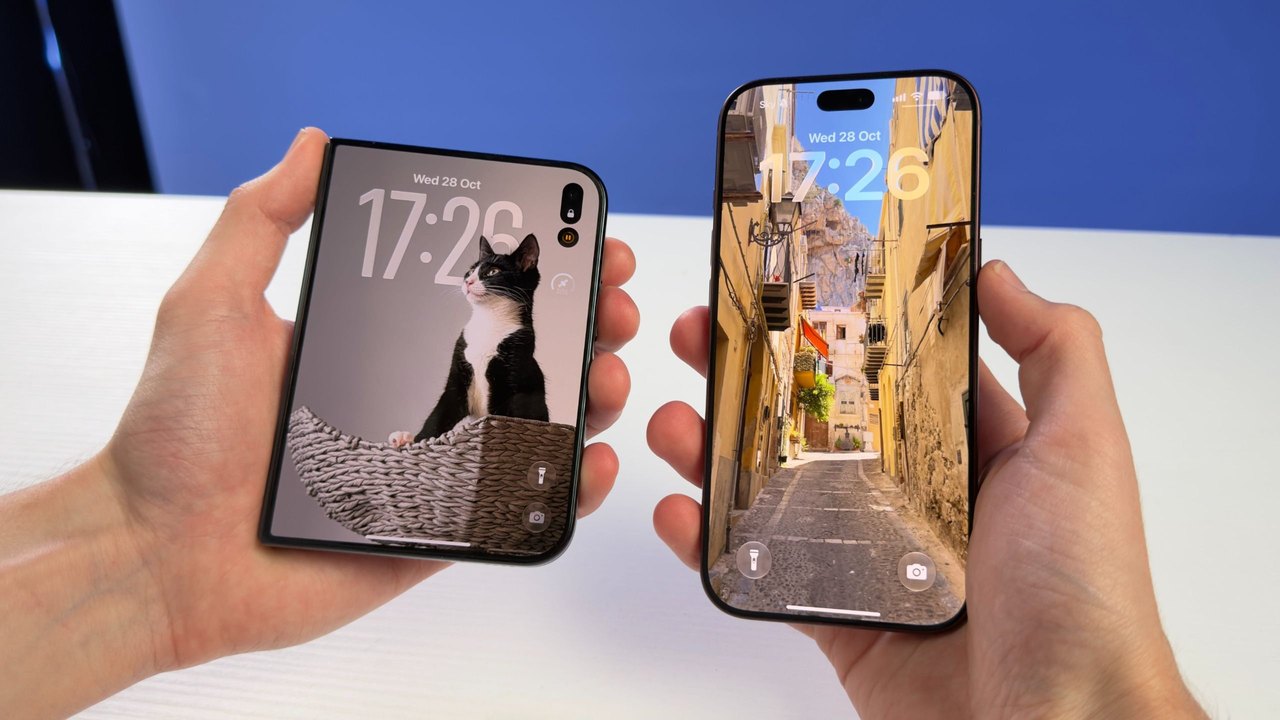 Apple's iPhone Duo vs. iPhone 18 Pro: How the First Foldable Compares to the Latest Flagship
 Why Smartphones Are Getting More Expensive: Exploring Rising Costs, AI Demand, and Chip Shortages
 Diverse Mobile App Categories Highlighted in Recent App Store Data
 Comparing iPhone Pro Prices and Features: 2019 Versus 2026 Reports
Trending on GlobeWire Daily
Selected from recent coverage and related topics; not live search rankings.
 Unconfirmed: Tovah Feldshuh Denies Cast Tension Rumors on ‘Nobody Wants This’ After Adam Brody’s ‘Free Palestine’ Comments
 Punjab Government Has Provided Over 70,000 Government Jobs Based on Merit, Says CM Bhagwant Mann
 Bihar Initiates Process to Remove Untrained Teachers Appointed After March 2015 Following Supreme Court Directive
 Mumbai Indians Name New Coaching Staff Ahead of IPL 2027
 Maharashtra Government Launches NAINA Project to Develop 'Third Mumbai' and Create 15 Lakh Jobs
 Supreme Court Expresses Concern Over Ministry's Alleged Interference in NCLT and NCLAT Administration