Mobiles & Gadgets
How to Stream GTA 6 on iPhone, iPad, or Mac Using Remote Play
· GlobeWire Daily Editorial Desk · Source: www.engadget.com
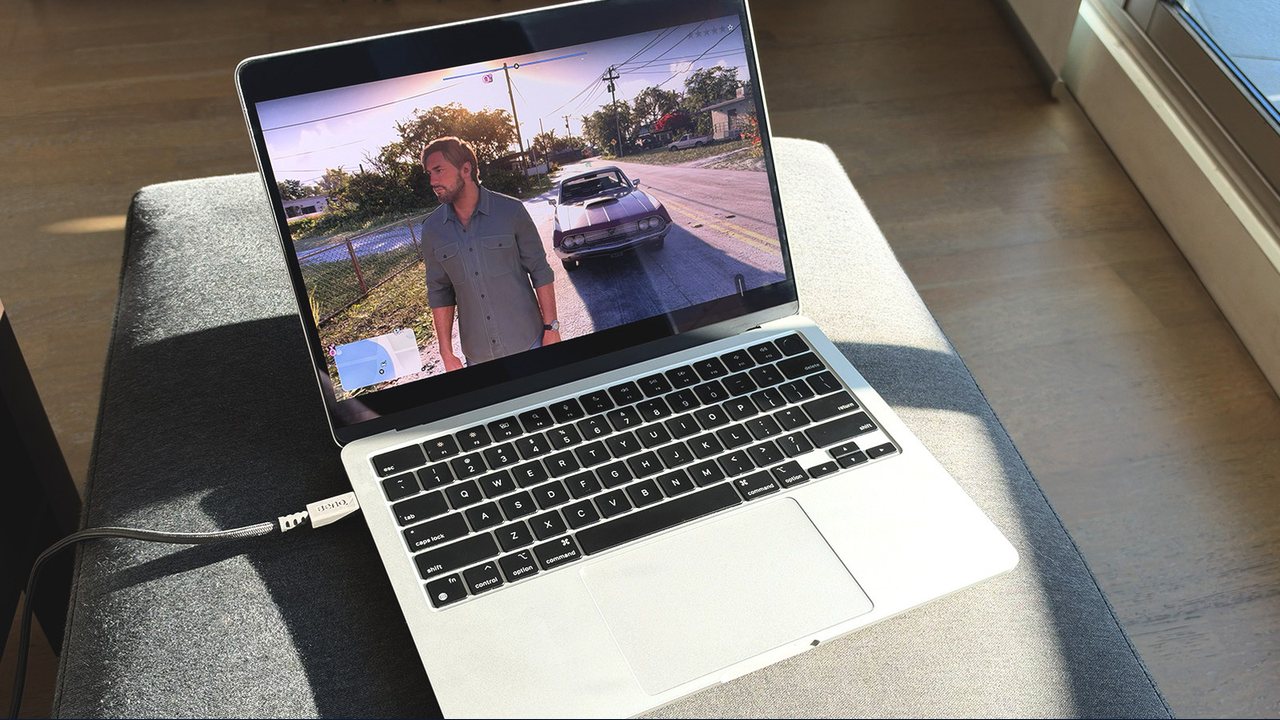
Grand Theft Auto 6 is now playable on PlayStation 5 and Xbox Series X/S. Players can stream the game to iPhone, iPad, Mac, Android, or Windows using the consoles' built‑in remote play features, which transmit video and audio from the console over the internet.
Requirements
- A PlayStation 5 or Xbox Series X/S with GTA 6 purchased and downloaded.
- A compatible gamepad (DualSense for PS5, Xbox Wireless Controller for Xbox) for the best experience; on‑screen controls are available but limited.
- Fast, stable internet on both the console and the streaming device. Sony recommends at least 15 Mbps; Xbox suggests a 5 GHz Wi‑Fi network with 7–10 Mbps.
PlayStation 5 Remote Play Setup
- On the PS5, go to Settings > System > Remote Play and enable Enable Remote Play.
- Navigate to Settings > Power Saving > Features Available in Rest Mode and turn on Stay Connected to the Internet and Enable Turning on PS5 from Network.
- Download the PS Remote Play app on your iPhone, iPad, Mac, Android, or Windows device.
- Open the app, sign in with the same PlayStation Network account used on the console.
- Select your PS5 from the list and wait for the session to connect.
- Launch GTA 6 from the game library on the remote device.
Xbox Series X/S Remote Play Setup
- On the Xbox, open Profile & system > Settings > Devices & connections > Remote features.
- Enable Enable remote features and set Power options to Sleep.
- On the streaming device, open a browser and go to the Xbox remote play website.
- Sign in with your Microsoft account, choose your console, and click Remote play on this device.
- Start GTA 6 from the console’s dashboard.
Controller Pairing
- DualSense (PS5): Hold PS + Create buttons until the light bar flashes blue, then pair via Bluetooth on the streaming device.
- Xbox Wireless Controller: Hold the Pair button for three seconds, then add the controller in the device’s Bluetooth settings.
Network Recommendations
- Use a 5 GHz Wi‑Fi band for lower latency.
- Wired Ethernet on the console side improves stability.
- Avoid heavy network traffic (large downloads, video streaming) during play.
Cloud Gaming Alternative for Xbox One
Xbox One owners cannot run GTA 6 natively but can stream it via Xbox Cloud Gaming (requires Game Pass Ultimate). Note that the Ultimate tier now includes only 15 hours of cloud play per month, and the game must be purchased digitally.
Verification and Practical Tips
- Confirm the latest remote play app versions on the App Store, Google Play, or Microsoft Store.
- Check Sony’s and Microsoft’s official support pages for updated network requirements.
- Test the connection on the same local network first; then try over the internet.
- Keep the console in Rest Mode with the network settings enabled to wake it remotely.
- Remember that haptic feedback and adaptive triggers work on Mac/Windows with a wired DualSense connection but may not function on mobile devices.
Share this article
Read the original source How to stream GTA 6 on your iPhone, iPad or Mac