How to Use Your Phone Camera to Test TV Remote Batteries and Troubleshoot
· GlobeWire Daily Editorial Desk · Source: www.engadget.com
Smartphones offer numerous everyday utility features beyond photography, including a simple trick to check if your TV remote control's batteries are dead using the phone's camera.
Using Your Phone Camera as an Infrared Detector
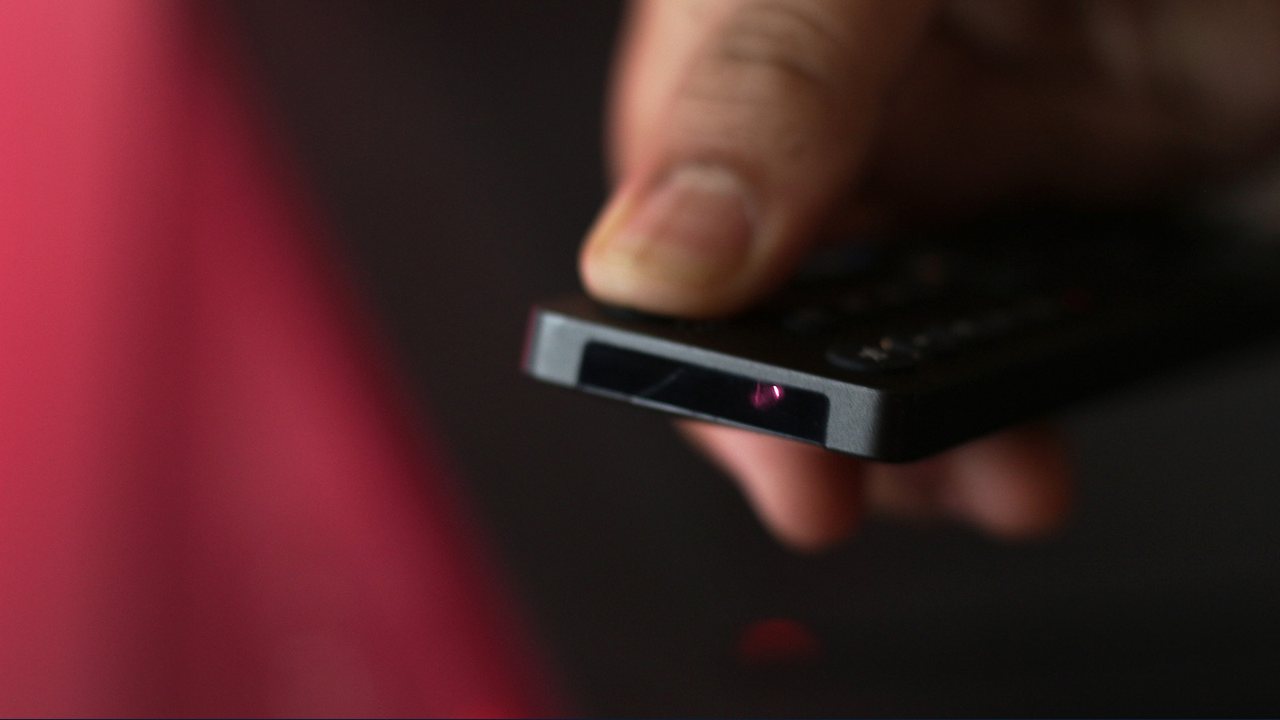
Many television remotes rely on infrared (IR) light to send commands to the TV, such as turning the power on or off, even if modern remotes also support Bluetooth for features like voice control. The infrared emitter is typically located at the front of the remote as a tiny LED, sometimes concealed behind a dark plastic window.
To check your remote battery status using this method:
- Launch the Camera app on your smartphone.
- Point the camera at the front emitter of the remote control.
- Press and hold a button on the remote—such as the power button—while observing your phone's screen.
- Look for a flashing light, typically appearing slightly purple, on the phone screen.
If the flashing light appears, the batteries retain sufficient power. If no light appears, the batteries may be depleted or dead.
Limitations and Distinguishing Connection Types
This camera trick can also help identify whether a specific button uses infrared or Bluetooth. For instance, pressing a volume button without seeing a flashing light indicates that particular command uses Bluetooth rather than IR.
However, the trick has limitations:
- It cannot diagnose all remote control issues.
- A physically damaged button may fail to register presses entirely, meaning the IR emitter will not flash even if the batteries are fully functional.
Alternatives: Using Your Phone as a Virtual Remote
For those looking to bypass physical remotes entirely, smartphones can often function as virtual remotes:
- Built-in IR Blasters: Certain Android devices feature built-in IR blasters that can control TVs using an appropriate IR remote app.
- Wi-Fi Companion Apps: Operating systems like Android TV and Fire OS allow smartphones to act as remotes via companion apps (such as the Google Home app for Google TV and Android TV).
To use Wi-Fi virtual remotes, both the phone and TV must connect to the same Wi-Fi network and log into the same account. Users can navigate interfaces, adjust volume, or use the phone keyboard for faster typing. If a virtual remote cannot power on the TV, configuring network standby settings—sometimes called Wake-on-LAN—may be required on the television.