5 settings and tools to make Google Keep more seamless
· GlobeWire Daily Editorial Desk · Source: www.androidpolice.com
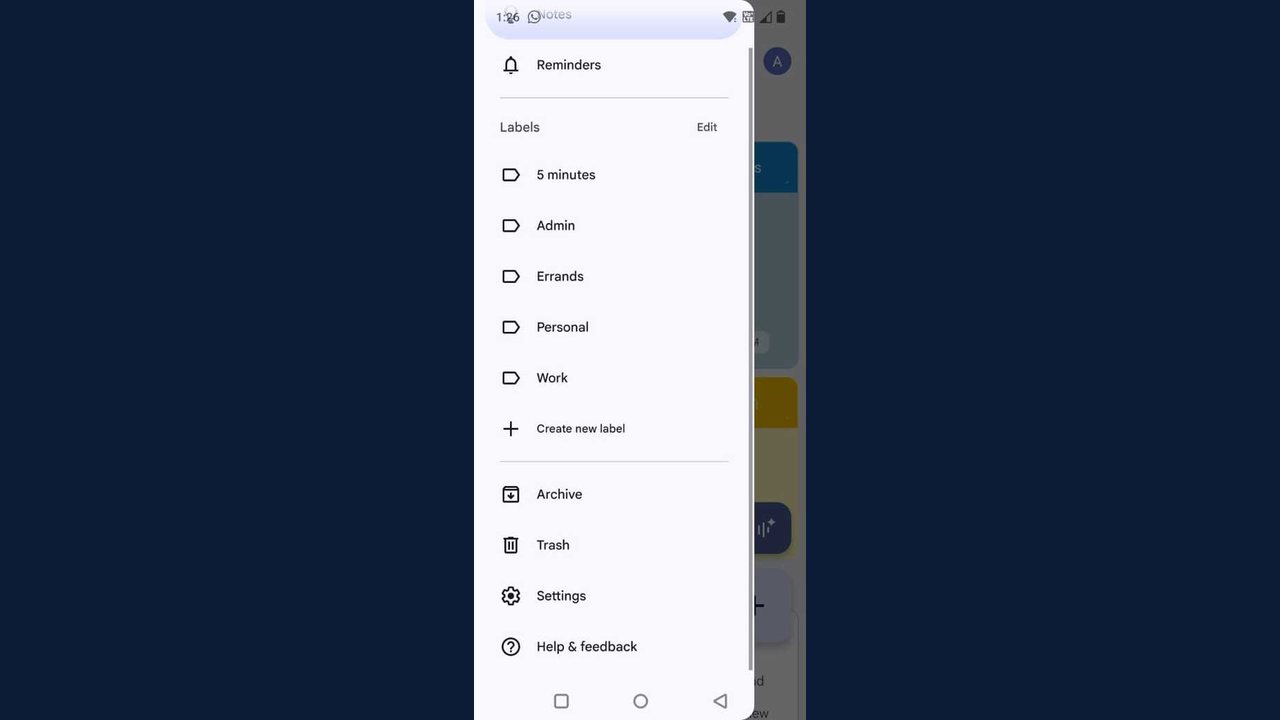
Google Keep is widely used for jotting down ideas, making checklists, and saving information. However, default settings and layouts can sometimes create friction during daily use. According to a reported setup guide, a few simple adjustments to preferences, home screen tools, and system menus can help make note management more streamlined.
Here is an overview of the reported tips and how they can be adjusted within the app and Android system settings.
Adjusting note creation and link previews
- Default text notes: By default, tapping the create button may prompt users to choose a note type. A reported setting under app preferences allows users to enable text notes by default, enabling one-tap note creation.
- Disabling rich link previews: When pasting URLs, Keep often generates large preview cards with thumbnails. A reported option in the settings menu lets users turn off rich link previews so URLs appear as compact text instead.
Improving access and layout
- Home screen widgets: The reported Quick capture widget allows users to add shortcut options directly to the Android home screen, letting them start text, audio, or list notes without opening the main app.
- Switching to list view: While Keep defaults to a multi-column grid, users can tap an icon near the top of the screen to switch to a single-column list view for easier scanning.
- Pinning to the share menu: When sharing content from other apps, users can long-press Google Keep in the Android sharing panel and select 'Pin' to keep it easily accessible at the front of the list.
Practical implications and verification
These reported configurations aim to reduce the number of taps required to save and find information. Because interface options can vary depending on the Android version and app updates, users can verify these settings by opening the Google Keep application menu or checking their device's system sharing options.
More to read
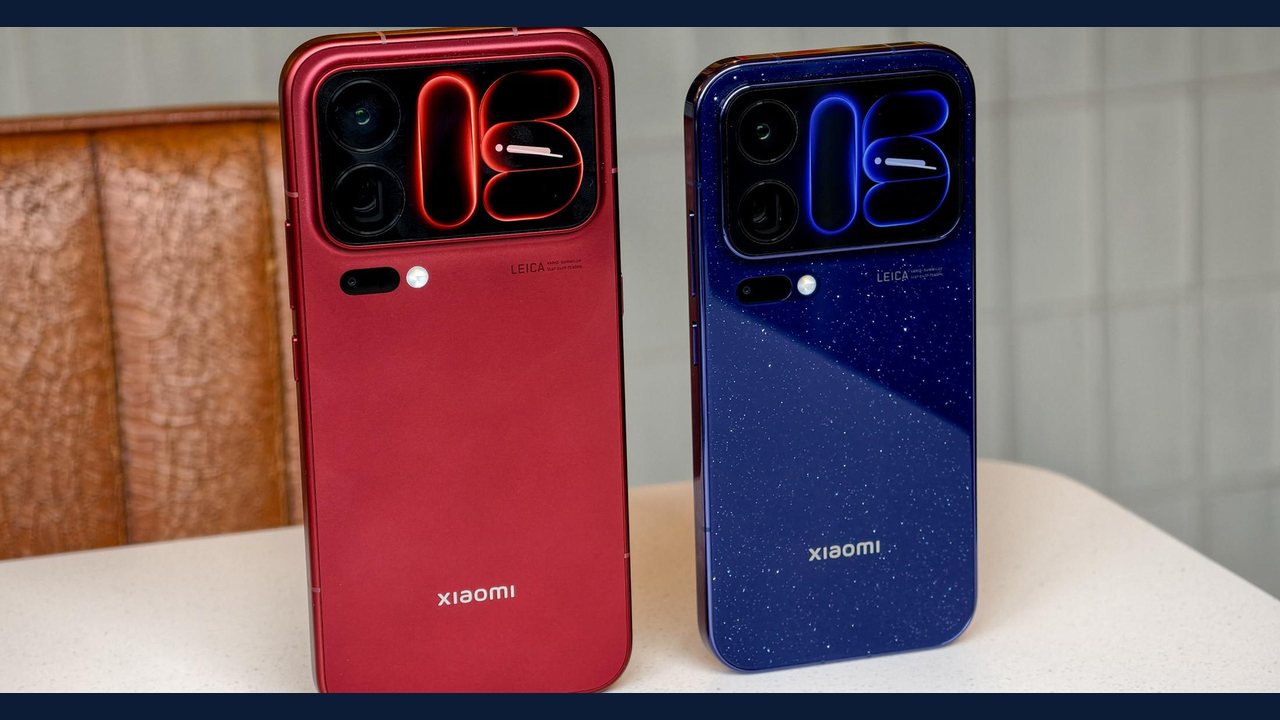 The Xiaomi 18 Pro Review: Two Screens Don't Make a Better Phone
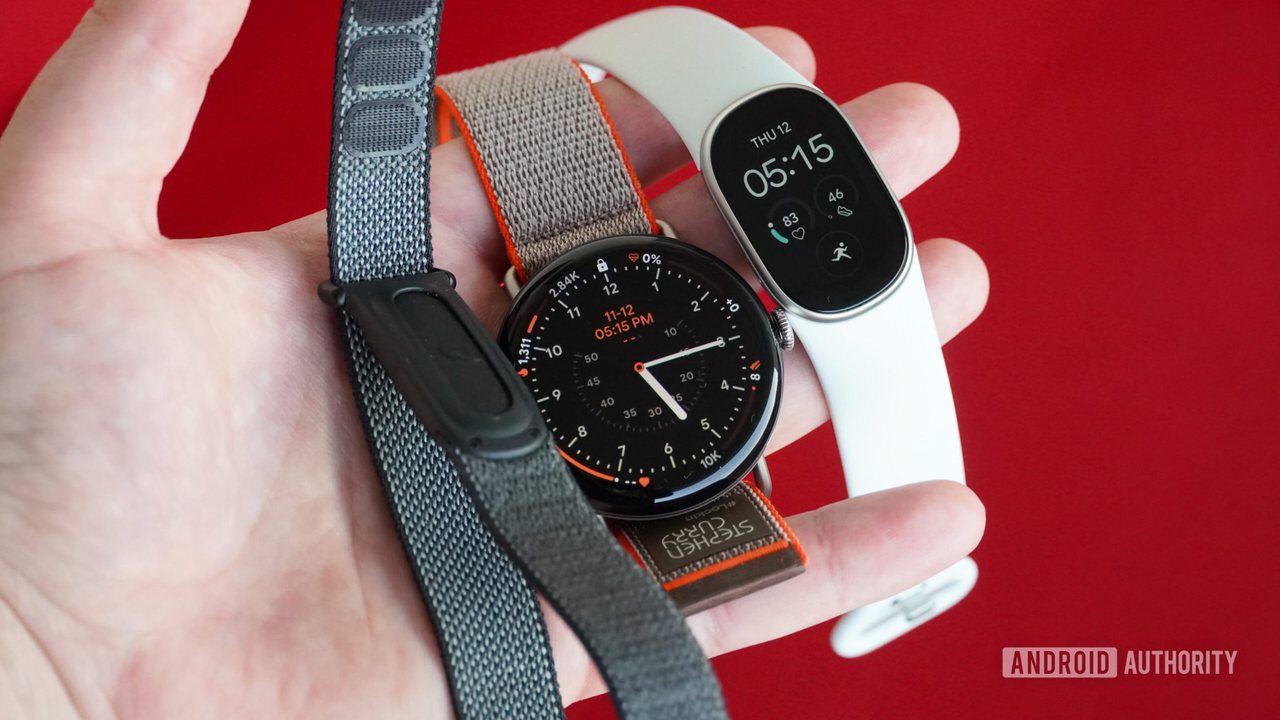 Side-by-side comparison of Fitbit Air, Fitbit Edge, and Pixel Watch 5 highlights multi-device Google ecosystem
 Google Search Adds Easter Egg Following Robert Pattinson James Bond Casting Announcement
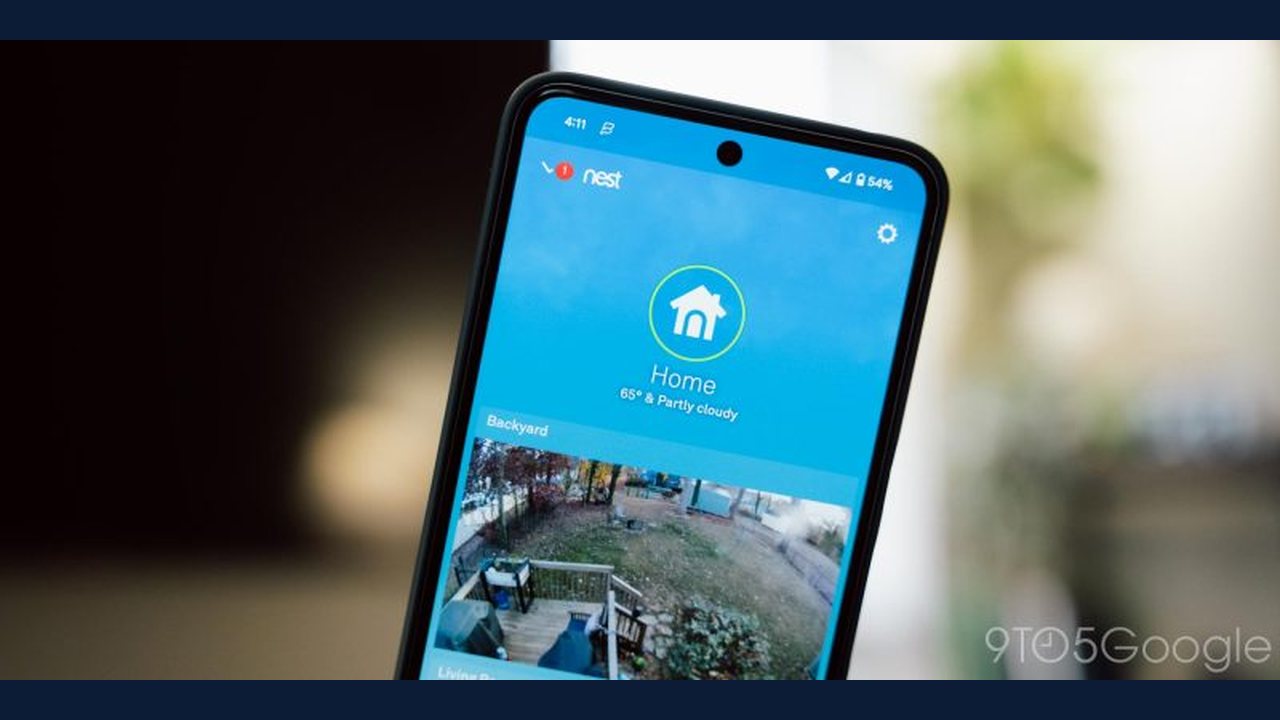 Google Announces Plans to Retire Nest App and Speaker Assistant by 2027