How to Turn Your Phone Into a Hands-Free Productivity Tool Using Gemini Voice Commands
· GlobeWire Daily Editorial Desk · Source: www.androidpolice.com
A reported personal workflow configuration details how one user leveraged Google's Gemini voice assistant and connected Google apps to handle daily briefings, email drafting, list creation, and device settings hands-free. According to the account, integrating voice commands helped reduce manual typing and phone handling during busy workdays.
Setting Up Connected Apps
Before using voice commands for productivity tasks, core Google apps must be linked to Gemini.
- Go to Gemini settings under Personal Intelligence and select Connected Apps.
- Enable the toggle to allow Gemini to interact with Gmail, Google Calendar, Google Keep, Messages, and WhatsApp.
- Turn on 'Hey Google' or hands-free talk settings to launch the assistant without unlocking or touching the device.
Daily Briefings and Email Management
By connecting the assistant to a calendar and inbox, users can request morning overviews and process emails using conversational prompts.
- Morning Briefing: A prompt such as, "What does my day look like, and what should I handle before my first meeting?" pulls unread emails, calendar events, and Google Keep tasks.
- Email Summaries: Asking Gemini to summarize messages and draft replies allows users to dictate responses without manual typing, a feature also compatible with Android Auto while driving.
Reminders and Device Control
Voice integration extends to note-taking apps and basic phone operations.
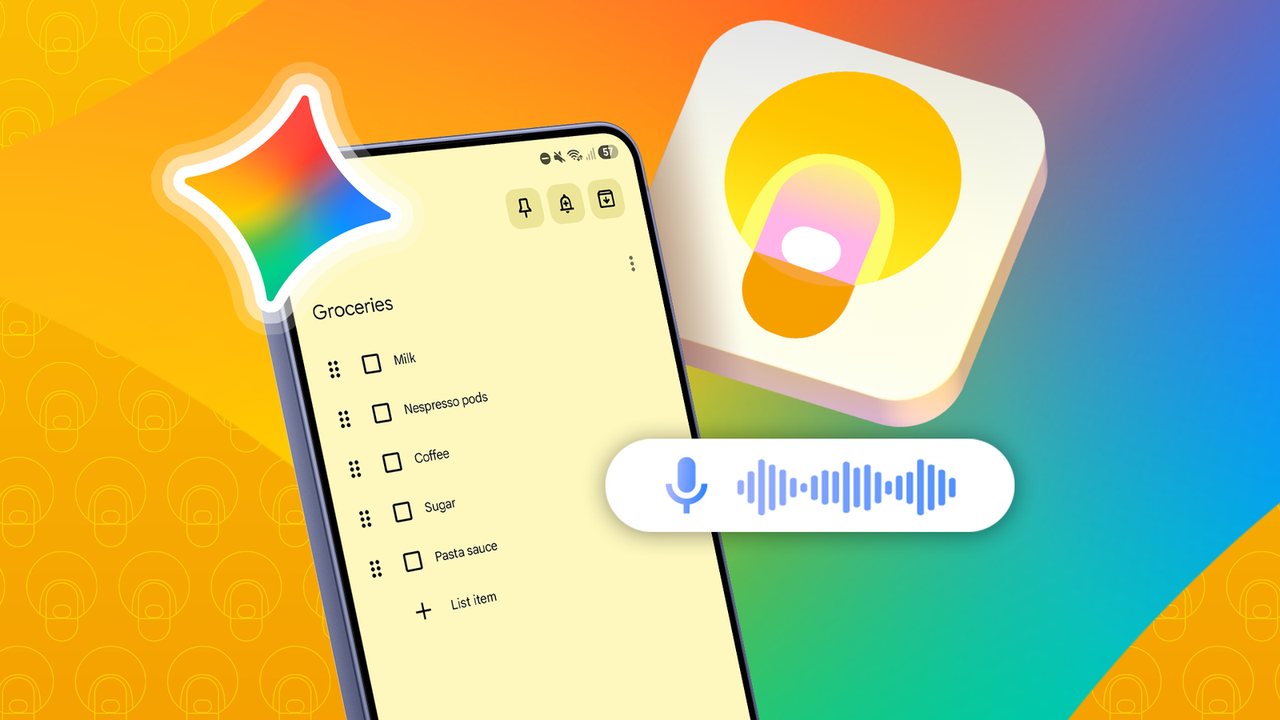
- Google Keep Checklists: Users can create grocery lists or reminders on the fly by voicing requests directly from the home screen.
- Core Settings: Voice commands can adjust device volume, screen brightness, focus modes, and battery-saving settings.
To verify these features, users can check their Gemini settings application to confirm supported app integrations and voice activation options are available on their specific Android device.