Apps & Software
How to Pair Bluetooth Headphones with a Windows 11 PC – Step‑by‑Step Guide
· GlobeWire Daily Editorial Desk
Quick Overview
Windows 11 users can connect most Bluetooth headphones by turning on Bluetooth, putting the headphones in pairing mode, and selecting the device from the Add device dialog. The process works for standard Bluetooth and for devices that support Microsoft’s Swift Pair feature.
Detailed Steps
- Open Quick Settings – Click the speaker icon on the taskbar, then click the arrow next to the Bluetooth symbol and ensure the toggle is On.
- Enter Pairing Mode – Follow the headphone manufacturer’s instructions (usually holding a button with the Bluetooth logo). The exact method varies by model.
- Add the Device – Press Win + I → Settings → Bluetooth & devices → Add device → Bluetooth. Your PC will scan for nearby devices.
- Select Your Headphones – When the name appears, click it. Windows will complete the pairing within a few seconds.
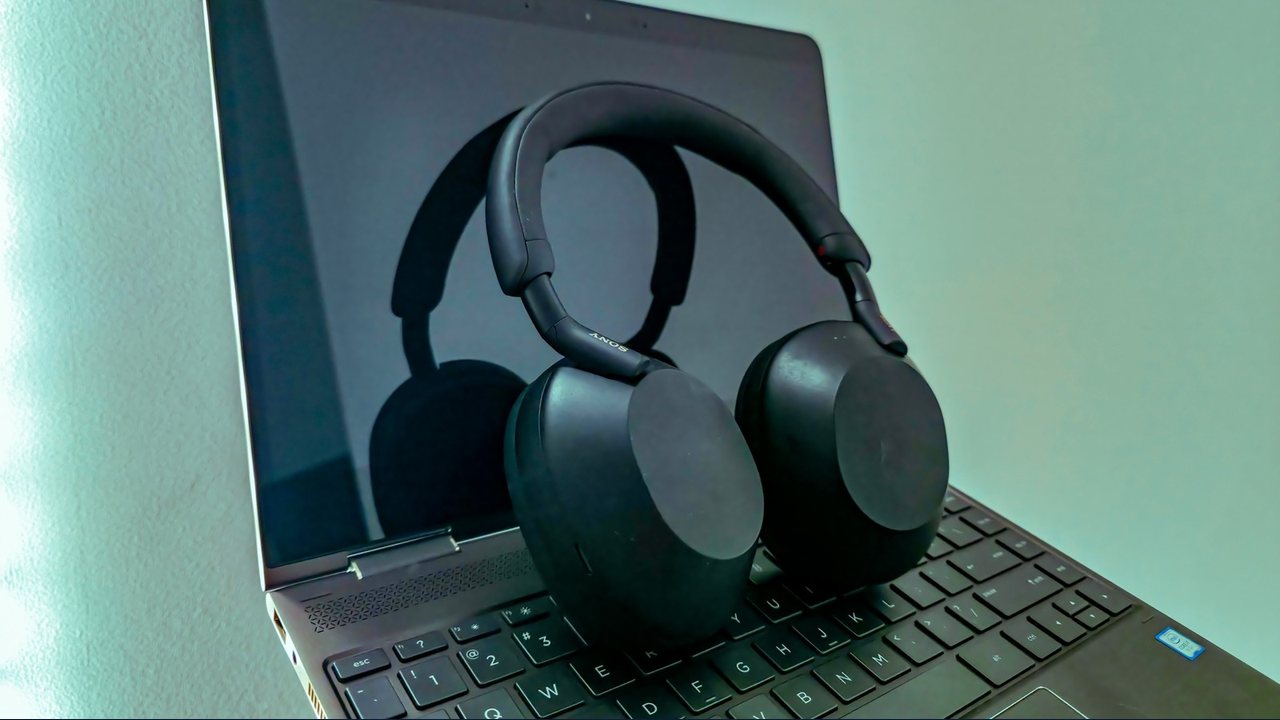
- Swift Pair (if supported) – For headphones like the Sony WH‑1000XM6 or Samsung Galaxy Buds 4 Pro, simply turn the device on in pairing mode; a pop‑up will ask to connect. Accepting the prompt pairs the device instantly and sets it to auto‑connect in the future.
Troubleshooting Tips
- Driver updates – If pairing fails, check Windows Update for the latest wireless‑adapter drivers.
- Restart – Rebooting the PC often clears temporary Bluetooth stack issues.
- Compatibility – Some older headphones may not support Windows 11’s Bluetooth stack; consult the manufacturer’s website for firmware updates.
- Swift Pair limitations – Only works with devices that have been certified by Microsoft; otherwise use the manual method above.
Practical Implications
- Once paired, audio output can be switched from speakers to headphones via the sound icon.
- The connection persists across reboots unless the headphones are removed from Settings → Bluetooth & devices.
- Users in noisy environments (e.g., open‑plan offices) benefit from the wireless freedom, but should verify battery life before long sessions.
How to Verify the Instructions
- Open Settings → Bluetooth & devices and confirm the toggle reads On.
- Look for the Connected status next to your headphone name.
- Test playback in any media app to ensure sound routes correctly.
--- *This guide reflects the state of Windows 11 as of September 2026 and does not guarantee future OS updates will retain identical steps.*
Share this article