Why Android Home‑Screen Icons May Be Stuck and How to Unlock Them
· GlobeWire Daily Editorial Desk
What changed?
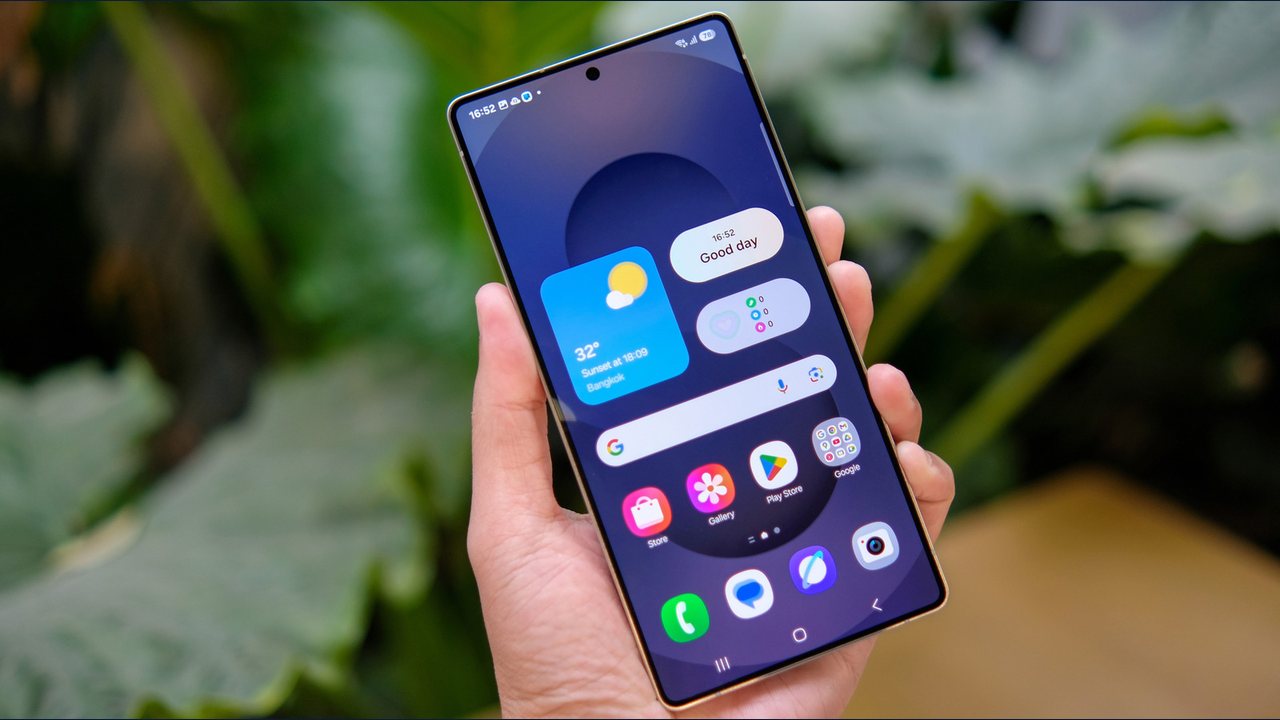
Users of many Android phones report that app icons on the home screen either won’t move or keep rearranging after updates. The issue is usually a locked home‑screen layout or an active auto‑sort setting, not a hardware fault.
Where and when does it happen?
The problem appears on a range of devices – Samsung, Google Pixel, and other manufacturers – after a software update, a change in launcher settings, or when the launcher cache becomes bloated. It can surface immediately after installing a new OS version or after installing an app that modifies the launcher.
Who is affected?
Anyone who customises their Android home screen and relies on manual icon placement. The symptom is identical across brands, though the exact menu paths differ.
How to verify the cause
- Open Settings → search for Home Screen.
- Look for an option named Lock Home Screen Layout (or similar) and see if it is toggled on.
- Check for Automatic sorting or Auto‑arrange options in the same menu.
- If the layout is unlocked, open Apps → find the launcher app (Pixel Launcher, One UI Home, etc.) → Storage → Clear cache.
- Restart the device; if icons still misbehave, boot into Safe Mode to rule out third‑party launchers.
Practical steps to fix the issue
- Turn off the lock: On Samsung, go to *Settings → Home Screen → Lock Home Screen Layout* and toggle it off. Other Android skins place the toggle under a generic *Home* tab.
- Disable auto‑sort: Look for *Automatic sorting* or *Sort apps by* and set it to None or your preferred order.
- Clear launcher cache: Navigate to the launcher app’s storage settings and tap Clear cache. Reboot afterwards.
- Reset home screen layout: If you prefer a fresh start, many launchers offer a *Reset layout* button; this restores the default grid and lets you rearrange icons anew.
What to expect after fixing
Once the lock and auto‑sort are disabled and the cache cleared, icons should move freely. Any residual rearrangement after a major OS update is normal, as the system may re‑apply the default grid.
Next steps for users
- Keep an eye on system update notes; manufacturers sometimes change default home‑screen behaviour.
- Periodically clear the launcher cache if you notice lag or frozen icons.
- Consider using a third‑party launcher (e.g., Nova, Lawnchair) if the stock options remain restrictive.
--- *All instructions are based on the Android settings described by Engadget and reflect typical manufacturer implementations. Specific menu names may vary by device model and Android version.*