How to Clean Up Your iCloud Storage to Free Up Space
· GlobeWire Daily Auto Desk · Source: www.engadget.com
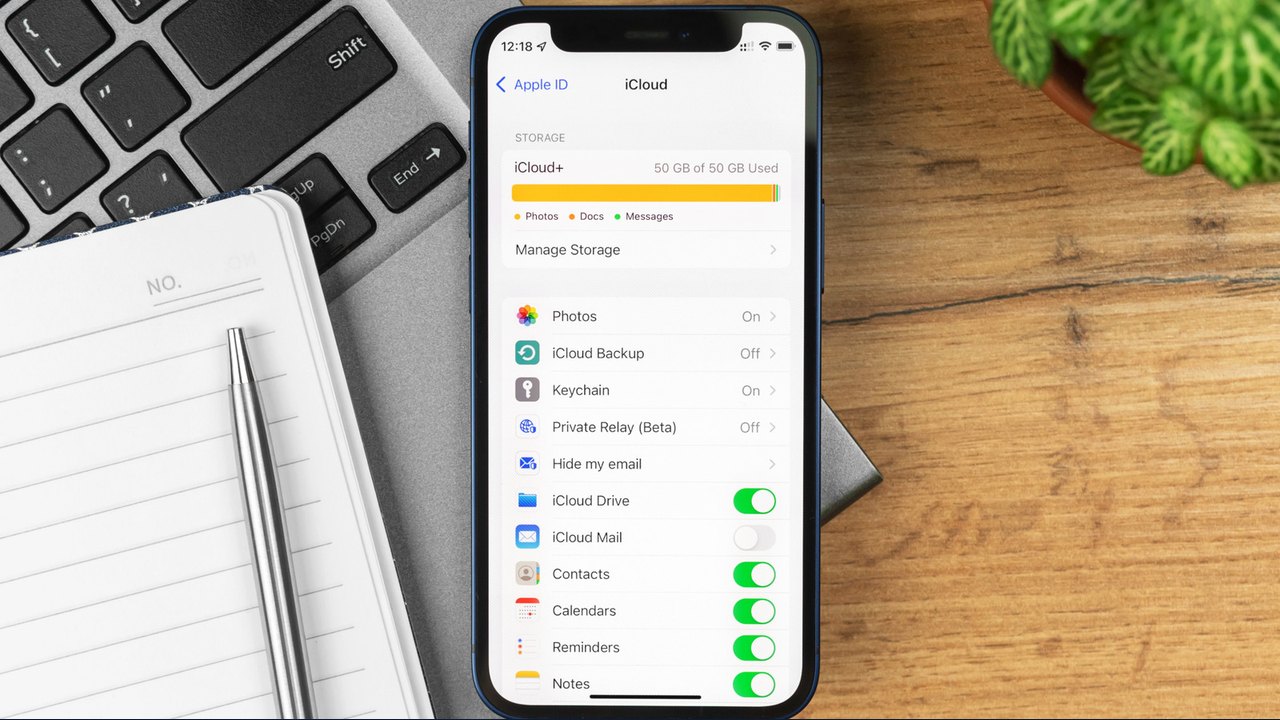
Image: Engadget · Photo source · Resized and letterboxed to 16:9; no AI generation
Apple provides users with 5GB of free iCloud storage by default, which is shared across backups, photos, videos, mail, attachments, messages, notes, and iCloud Drive data. When storage fills up, users can choose to upgrade their monthly subscription plan or delete unnecessary files at no cost.
Checking Your Storage Usage
To review storage allocation, users can navigate to iCloud Settings on an Apple device or via the iCloud website:
- On iOS: Go to Settings > [Your Name] > iCloud > Storage.
- On Mac: Go to System Settings > [Your Name] > iCloud > Manage.
The settings menu displays a ranked list of applications consuming space. Users can also check Settings > [Your Name] > iCloud > Storage > Recommended for You for built-in management suggestions.
Fastest Ways to Free Up Space
- Review Photos and Videos: Delete unneeded videos, which consume more space than still images, or use built-in duplicate management tools.
- Adjust Message History: Go to Messages settings and change the 'Keep Messages' option to 30 Days or 1 Year to automatically remove older threads and shared media.
- Clear Old Backups: Navigate to iCloud > Storage > Backups to remove backups associated with devices you no longer own or use.
- Disable Unused App Syncing: Tap 'See All' beside 'Saved to iCloud' in settings to toggle off unused apps.
- Manage Mail and Attachments: Delete large email attachments and empty Trash, Junk, and Deleted folders.
Understanding the 30-Day Retention Period
Items deleted from Photos, Mail, iCloud Drive, and Notes are typically held in 'Recently Deleted' folders for approximately 30 days. While this allows recovery of accidentally removed files, it also means storage is not immediately reclaimed. Users can manually bypass this delay by selecting items within those folders and choosing the delete option.
Practical Implications and Verification
Removing content from apps and synced folders will remove those items across all connected devices. Users should verify their current storage distribution directly through official Apple account settings before deleting important data.
AI-assisted reporting; source claims are attributed and have not been independently verified.
More to read
 Pedigree Pro Sample Kit Offer: How to Claim Your Free Pet Food Samples
 Exploring the New Anydeli Plastic-Free Silicone Food Storage Containers
 US Department of Energy Proposes Funding for Marin Clean Energy Storage Initiative
 Troubleshooting Steps When Your PC Fails to Recognize an External Drive