How to Move Samsung's One UI Now Bar, and the Catch Involved
· GlobeWire Daily Editorial Desk · Source: www.engadget.com
Samsung's One UI software includes a lock screen feature known as the Now bar, which displays information such as timers, notes, news, and media controls. While the feature defaults to the bottom edge on some devices, user settings or specific configurations can cause it to hover near the middle of the screen, potentially obscuring other widgets.
Moving the Now bar back to the bottom of the screen is possible, but it involves a compromise due to how the interface interacts with biometric hardware. Here is an overview of how the feature behaves and the steps required to adjust its placement.
Understanding the Fingerprint Reader Conflict
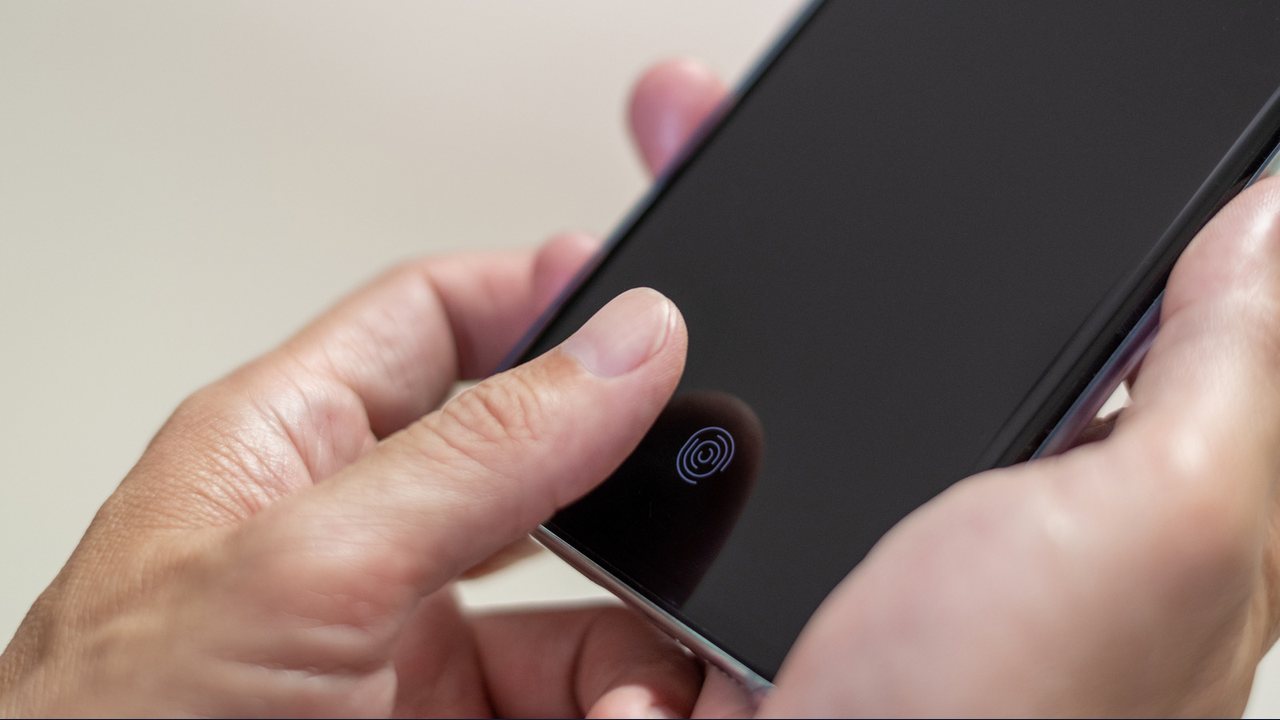
The positioning of the Now bar is directly tied to the phone's fingerprint reader, particularly on models where the sensor is located at the bottom of the display. When both features are active, One UI automatically moves the Now bar upward to prevent it from overlapping with the fingerprint sensor. The operating system does not currently offer a way to manually reposition either the Now bar or the fingerprint reader independently while keeping both enabled.
How to Move the Now Bar to the Bottom
Users who prefer the Now bar at the bottom edge must disable the fingerprint unlock method entirely.
- Open the Settings app on the device.
- Select Security and privacy.
- Tap Screen lock and biometrics.
- Remove stored fingerprints and disable fingerprint unlocking.
To maintain device security without using a fingerprint, alternative unlock methods such as a password or face recognition can be configured. These alternatives do not trigger the automatic repositioning of the Now bar.
Alternative Options: Disabling the Now Bar
For users who rely on the fingerprint reader and wish to avoid changing security settings, the Now bar itself can be modified or disabled.
- Navigate to Settings.
- Select Lock screen.
- Tap Now bar to manage individual app access.
Disabling all apps connected to the Now bar effectively hides the feature. However, because the Now bar serves as the primary method for keeping media player controls on the lock screen, users can choose to leave only the media player enabled while turning off other app notifications.
Verification and Practical Steps
To verify software settings and feature availability, users should consult the official Samsung settings menu on their specific device model, as One UI versions and hardware layouts may vary. Original announcements and software update details can be reviewed through official Samsung community forums and support channels.