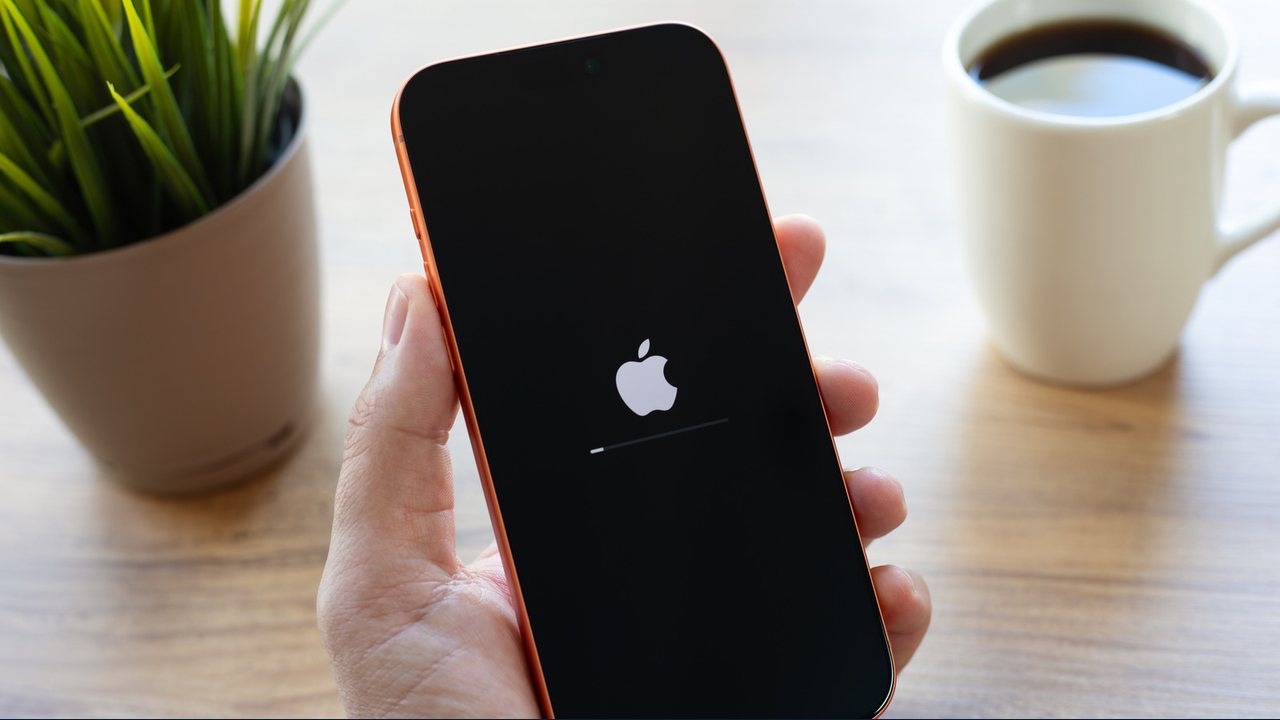
Apple Intelligence on iOS 27 Can Consume Up to 14 GB of iPhone Storage
· GlobeWire Daily Editorial Desk · Source: www.engadget.com
Summary
Apple’s new AI suite, Apple Intelligence, arrives with iOS 27 and brings a noticeable storage footprint. Apple says the feature can use up to 14 GB on the iPhone 17 Pro, iPhone Duo and iPhone Air, and 8 GB on other compatible models, though user reports range from 9 GB to 16 GB. For devices with modest capacities (e.g., 128 GB), this represents more than 12 % of total space.
How Much Space Does Apple Intelligence Use?
- Apple‑stated maximum:
- 14 GB on iPhone 17 Pro, iPhone Duo, iPhone Air
- 8 GB on all other supported iPhones
- User‑reported range: 9 GB – 16 GB
- Impact on a 128 GB iPhone: roughly 12 %‑13 % of total storage.
Reducing the Storage Footprint
Apple Intelligence cannot be turned off with a single toggle in iOS 27. Even when individual AI features are disabled, the system retains the underlying models. A workaround that some users have shared involves changing Siri’s language setting while keeping the iPhone’s system language unchanged:
- Open Settings → Siri → Language.
- Choose a different English variant (e.g., English (Canada)).
- Restart the iPhone.
- Check Settings → General → iPhone Storage for reclaimed space.
Note: This method relies on a quirk that may be patched in future updates, so the space savings are not guaranteed long‑term.
What Is Lost When You Disable Apple Intelligence?
- Enhanced Siri: contextual understanding, cross‑app actions, conversational replies, on‑screen insights, and draft‑writing assistance.
- AI‑powered app upgrades: smarter Photos cleanup, Safari tab grouping by topic, natural‑language Shortcuts, automatic proofreading, and real‑time call‑time information.
- Camera Siri mode: on‑demand object identification and description.
Practical Takeaways
- Users who prioritize storage over AI convenience can try the language‑swap trick, but should monitor future iOS releases for changes.
- Those who value the new AI features will need to accept the storage cost or consider a higher‑capacity iPhone.
- Verify Apple’s official storage figures on the Apple Support page for iOS 27, and compare with the iPhone Storage screen on your device after any changes.
--- Verification steps
- Visit Apple’s support article on iOS 27 storage requirements.
- Open Settings → General → iPhone Storage to see the exact space used by Apple Intelligence.
- Test the language‑swap method and note the before‑and‑after numbers.
--- *All figures are based on Apple’s documentation and user‑reported observations; no independent benchmark data is available at this time.*