Why Your Phone Shows “No Service” Even With a SIM Card Inserted
· GlobeWire Daily Editorial Desk · Source: www.engadget.com
Overview
If your smartphone powers on but displays *No Service* or *No SIM card installed*, the problem can stem from hardware, software, carrier issues, or account status. Below is a fact‑based guide that separates confirmed fixes from reported suggestions, and explains how you can verify each step.
Confirmed Causes
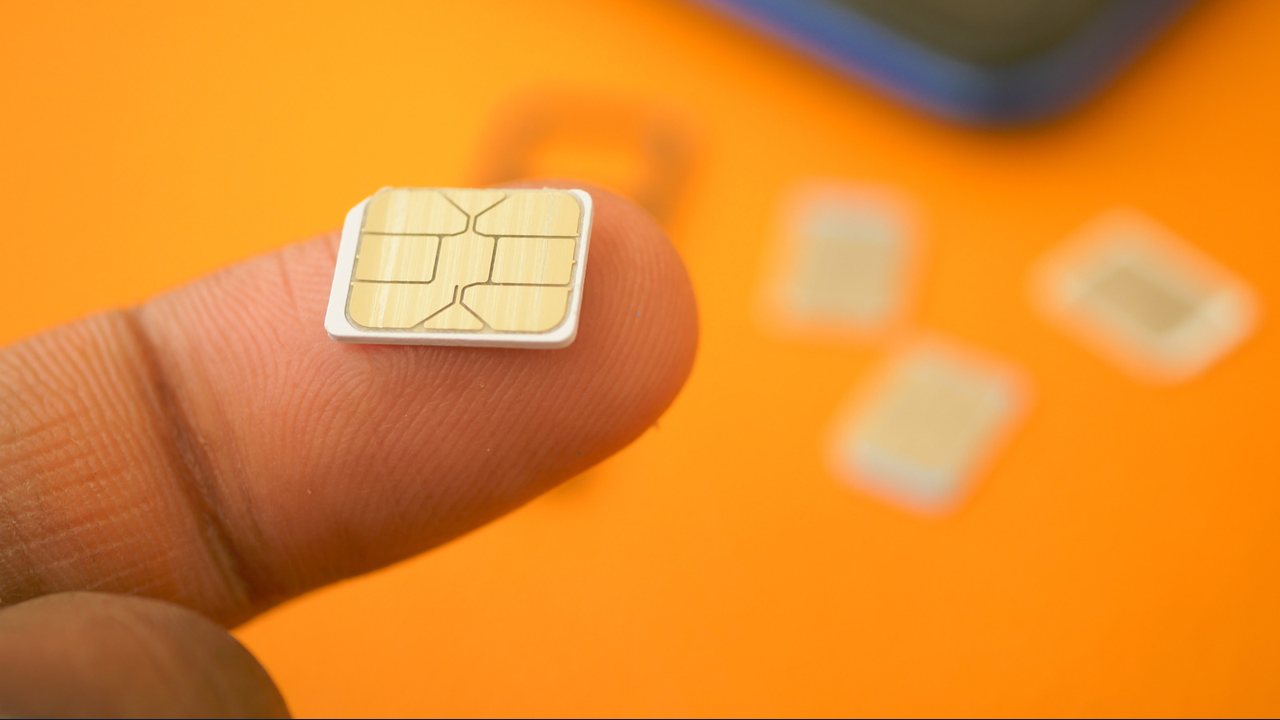
- Improper SIM seating – Dropping the phone or a recent repair can shift the card. Removing the tray with a SIM ejector (or a paper‑clip) and reinserting the card often restores service.
- Carrier outage – Network problems affect all users of that provider. Test another device on the same network or ask a friend using the same carrier.
- Unpaid bill or suspended account – Service is disabled until the balance is cleared. Check your carrier’s online portal or app.
- Weak signal area – Rural locations, underground spaces, or heavily shielded buildings can block towers. Moving to a higher spot may help.
Reported (but Not Universally Verified) Fixes
- Toggle Airplane Mode – Turning it on for a few seconds and back off forces the radio to re‑register.
- Network Settings Reset – Resets Wi‑Fi, Bluetooth and cellular preferences without touching personal data. On iOS it’s under *Settings → General → Transfer or Reset iPhone → Reset → Reset Network Settings*; on Android it’s usually *Settings → System → Reset options → Reset Wi‑Fi, mobile & Bluetooth*.
- Enable Data Roaming for eSIMs – International travelers using an eSIM may need roaming turned on in *Settings → Cellular* (iPhone) or *SIM Manager* (Android).
- Check for Physical Damage – Bent or corroded contacts in the SIM tray can prevent proper communication.
Practical Steps to Diagnose
- Inspect the SIM – Look for dust or damage; clean gently with a soft brush.
- Re‑seat the SIM – Power off, remove the tray, re‑insert, and power on.
- Test with a Known‑Good SIM – Borrow a friend’s card; if it works, the original SIM may be faulty.
- Verify Carrier Status – Visit the provider’s status page or social media for outage alerts.
- Review Account – Log into your billing portal to confirm service isn’t suspended.
- Move Location – Walk to a window or higher floor to see if signal improves.
How to Confirm the Original Announcement
The advice above reflects common troubleshooting steps documented by device manufacturers and carrier support sites. For the most reliable confirmation, consult the official support pages of your phone’s brand (Apple, Samsung, Google, etc.) and your mobile provider’s help center.
--- Bottom line: *No Service* with a SIM present is usually a fixable issue. Start with the simplest hardware check, then move to software resets and carrier verification before assuming the SIM itself is defective.