Guide Details Save Preparation and Transfer for Seedsow Lua Editor
· GlobeWire Daily Editorial Desk · Source: github.com
Image: GitHub · Photo source · Resized and letterboxed to 16:9; no AI generation
A community-focused preparation and installation guide outlines the workflow for setting up and transferring the Seedsow Lua Editor save data between a hacked Nintendo Switch 1 and a stock Nintendo Switch 2. The process utilizes a modded Switch 1 for initial save restoration via the JKSV homebrew tool, followed by standard Nintendo save-transfer features to move the data to the second console.
Core System Requirements
- Consoles: A hacked Nintendo Switch 1 capable of running homebrew and a stock Nintendo Switch 2.
- Firmware: Targets firmware version 23.0.1 on both consoles, which represents the current checkpoint referenced in the guide.
- Accounts: A matching Nintendo Account linked to the designated save user on both devices.
- Software: The same edition of Seedsow Lullaby installed on both systems, with reference testing performed using the 1.0.0 US eShop demo.
Preparation and Installation Steps
- Initial Save Generation: On Switch 1 in stock mode, launch the software, create a new game, make an in-game save, and close the application.
- Homebrew Tool Setup: Transfer the JKSV save manager to the Switch 1 microSD card and boot into custom firmware (CFW) on sysNAND to run it.
- Backup Creation: Use JKSV to create an initial backup of the existing save data as a safety precaution.
- Save Substitution: Place the pre-built `Seedsow-Lua-Editor-Save.zip` file into the appropriate JKSV backup folder alongside the original backup, then use JKSV to restore the editor save.
Transfer Methods
- Nearby Local Transfer: Recommended for demo editions, utilizing system settings to beam the save directly from Switch 1 to Switch 2 while connected to Nintendo servers.
- Cloud Save Transfer: Requires an active Nintendo Switch Online membership and the full game edition on both consoles to upload and download the save data via Nintendo's cloud servers.
Users should verify all firmware requirements and official instructions directly with Nintendo. The guide emphasizes keeping original backups intact and notes that custom firmware usage carries inherent platform risks.
AI-assisted reporting; source claims are attributed and have not been independently verified.
More to read
 Seedsow Lullaby Switch Demo: How to Install and Use the Lua Editor for Future Exploit Preparation
 How to Watch The Celebrity Traitors Season 2 Finale: Streaming Details and Guide
 GitHub Repository Details Sandbox Extension TOCTOU Bug Involving Symlinks
 Managing Save Data and Script Execution via ns2jb Sessions
Trending on GlobeWire Daily
Selected from recent coverage and related topics; not live search rankings.
 Madhya Pradesh Government Plans Revenue Generation from 117-Year-Old Edward Villa in Mumbai Through Leasing
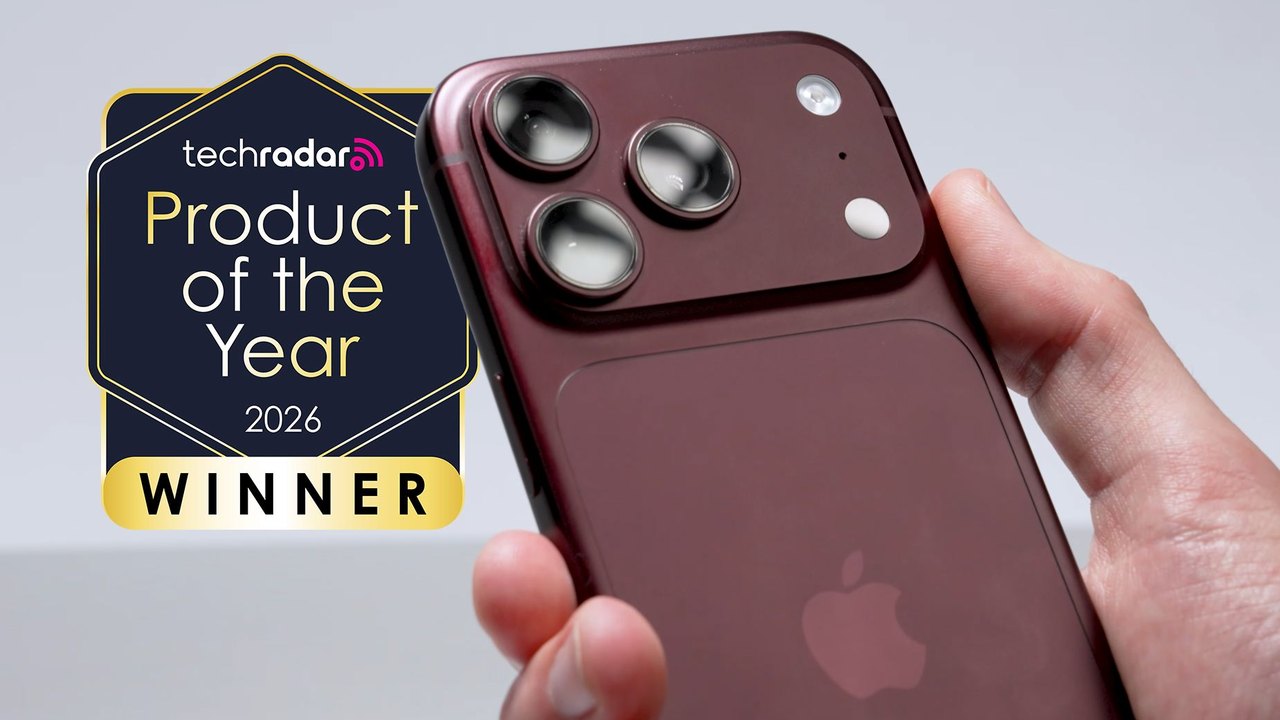 iPhone 18 Pro Named TechRadar Product of the Year 2026
 Google Project Suncatcher Runs Gemma 4 AI on Orbiting Satellite and Receives First Response
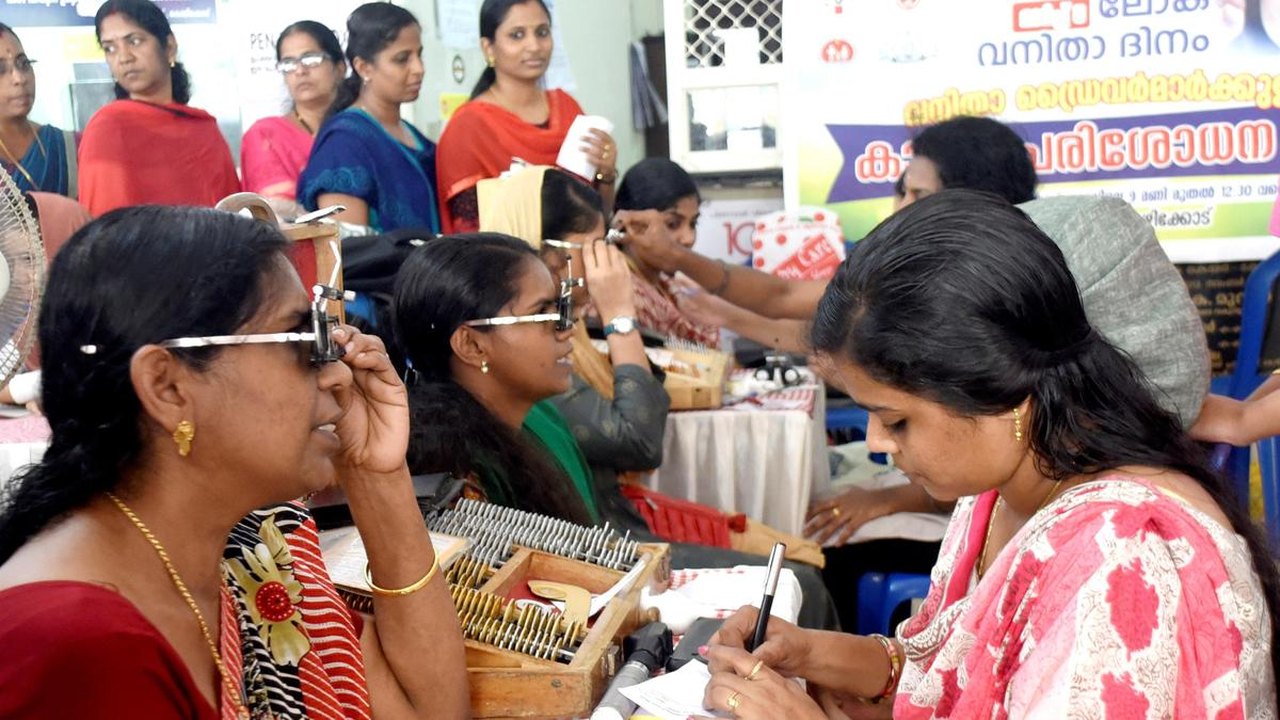 Gender Disparities in Eye Care Access Across India Examined
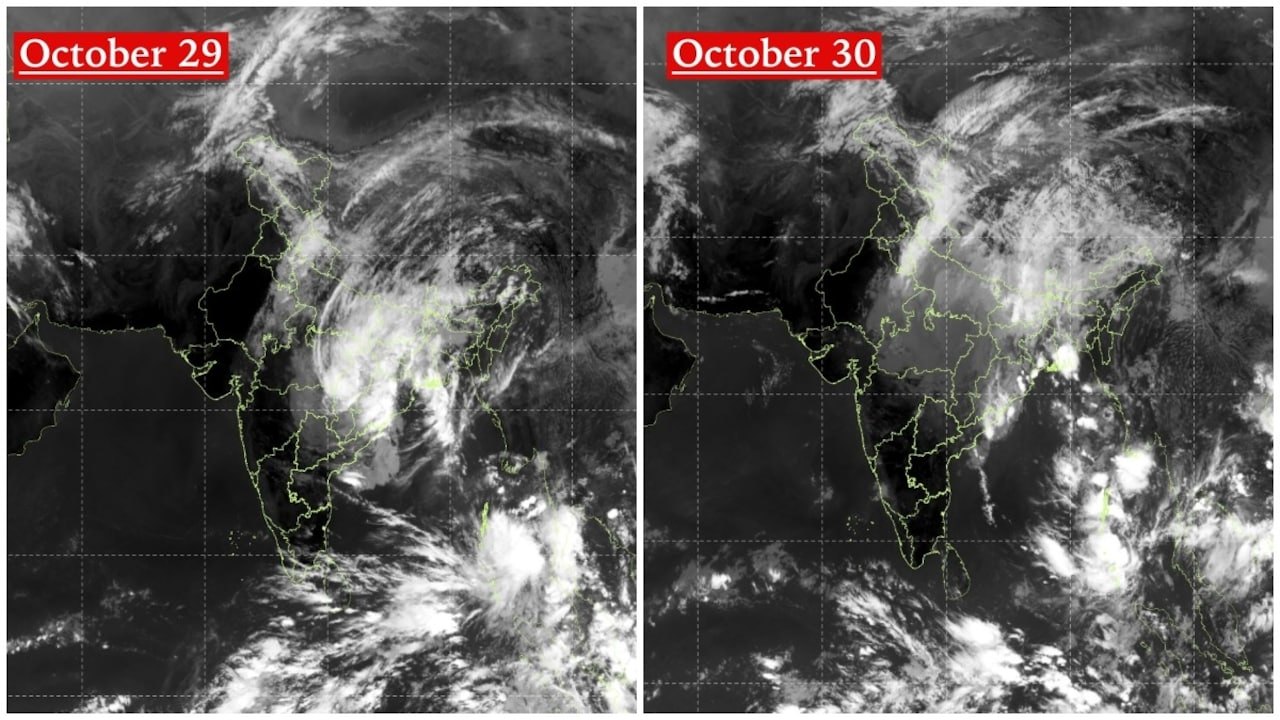 Satellite Images Show Cyclone Arnab Weakening Over India As New System Brews
 Expanding Green and Blue Spaces Crucial for India's Economic and Public Health, Reports Indicate