5 Apple Watch Settings That Can Help You Save Battery Life
· GlobeWire Daily Editorial Desk · Source: www.engadget.com
According to reported information, users looking to maximize their Apple Watch battery endurance can utilize several software settings and adjustments. Real-world results will naturally vary depending on daily usage patterns. If a device's battery health has depleted significantly, checking battery health via Settings > Battery > Battery Health or seeking a professional battery replacement are reported options.
Here is a summary of software methods that may help extend battery life:
1. Enable Low Power Mode
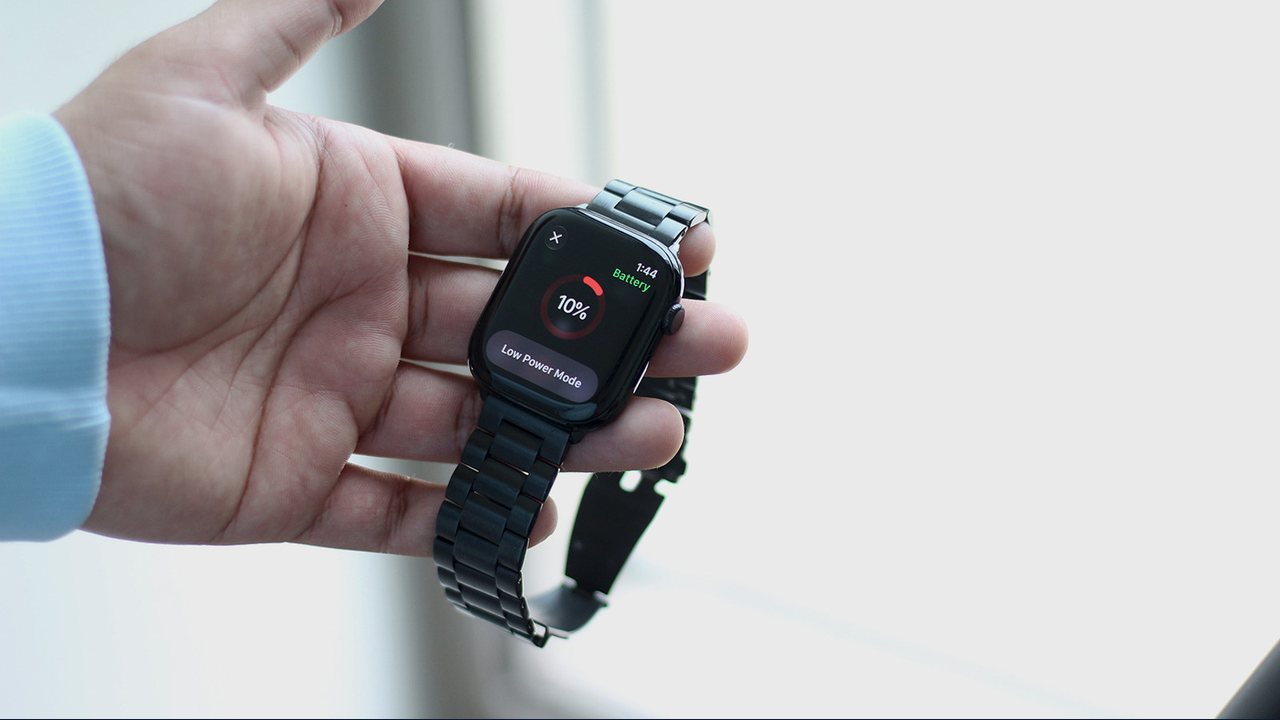
The most straightforward way to stretch a low battery is turning on Low Power Mode.
- How to access: Press the side button, tap the battery percentage, and select Low Power Mode, or navigate through Settings > Battery.
- What it affects: Disables the Always On display, Wrist Flick, and Double Tap gestures. Pauses background heart rate and blood oxygen measurements, and limits Siri request speeds, Live Activities, and complication updates.
- Duration: Can be enabled indefinitely until toggled off, or set to automatically run for one, two, or three days.
2. Pick the Right Connectivity Method
Managing how your watch connects to the internet can impact power consumption.
- Bluetooth pairing: Apple reportedly recommends keeping the watch near its paired iPhone so it can utilize the phone's internet connection over Bluetooth, saving power compared to standalone cellular usage.
- Wi-Fi over Cellular: If cellular data is not strictly required and Wi-Fi is available, switching to Wi-Fi can conserve energy.
- Airplane Mode: Can be enabled from the Control Center or Settings if you do not mind temporary disconnection.
3. Streamline Apps and Notifications
Unnecessary apps and constant alerts can lead to extra battery drain.
- Uninstall unneeded apps: Removing unused apps directly from the watch stops them from refreshing in the background.
- Background App Refresh: Navigate to Settings > General > Background App Refresh to disable updates for specific apps.
- Manage Notifications: Go to the Watch app on your paired iPhone, select Notifications, scroll to Mirror iPhone Alerts From, and toggle off alerts for apps you do not need on your wrist.
4. Turn Off Always On Display
For a more targeted approach than full Low Power Mode, users can disable the Always On display.
- How to adjust: Navigate to Settings > Display & Brightness > Always On and toggle it off.
- Reported impact: Third-party testing cited by Macworld reported that turning off this feature extended battery life by 10 to 12 hours.
- Additional tips: Minimize screen-on time by covering the watch with your palm or disabling Wake on Wrist Raise.
5. Use Low Power Mode During Workouts
Users who wish to avoid the barebones feel of full Low Power Mode can configure it to activate solely during exercise sessions.
- Workout App Settings: Open the Workout app, select an activity, tap Goals and Targets, scroll to Extended, and select Extended Workout (or Max Extended Workout where available).
- Automatic activation: Navigate to Settings > Workout and turn on the Low Power Mode toggle to have it kick in automatically whenever a workout starts.
*Practical implications:* Adjusting these settings may limit certain health tracking features, display responsiveness, or notification immediacy. Users can verify these options directly within the settings menu of their Apple Watch or via Apple's official support documentation.