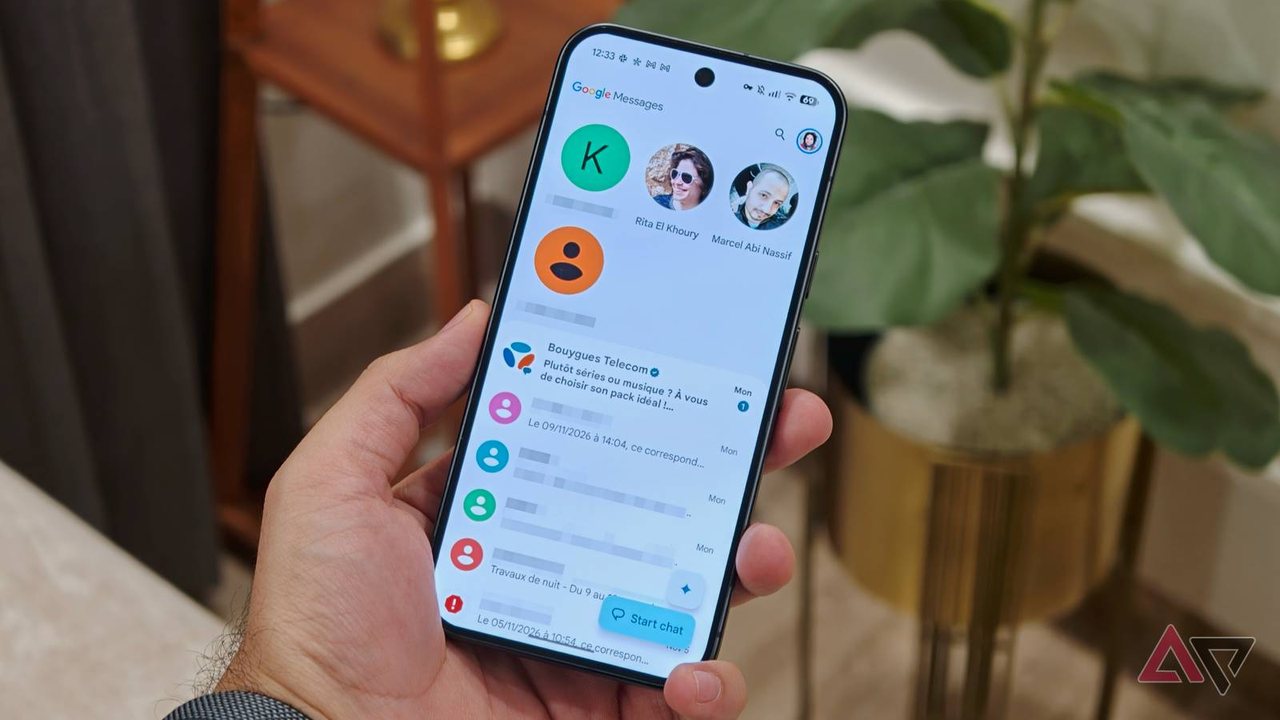
How to Use Stars in Google Messages to Easily Find Flight Details and Door Codes
· GlobeWire Daily Editorial Desk · Source: www.androidpolice.com
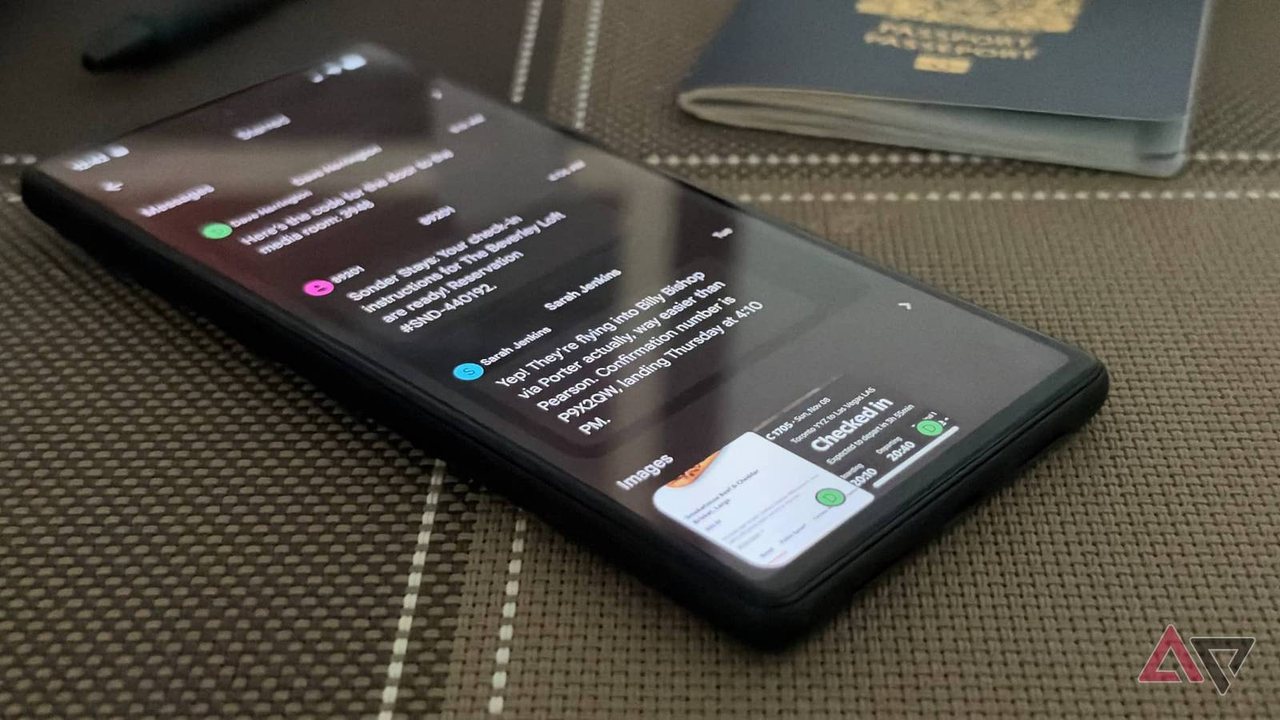
Google Messages offers a built-in starring feature that allows users to bypass frustrating keyword search menus to track temporary information like flight details and door codes.
While recent updates have improved search by displaying multiple matches per conversation, keyword searches still present limitations. Searching for generic terms or looking for multiple pieces of information across different messages often results in wading through irrelevant results or requiring separate searches.
Using the Star Feature in Google Messages
According to user observations, starring messages provides a simpler way to keep transient details organized without manually copying data into separate note-taking apps like Google Keep.
- How to star a message: Long-press on any message bubble within a chat thread and select the star icon from the menu. A small star icon will appear in the lower-right corner of the message.
- Accessing starred items: Open the search panel within Google Messages and tap the "Starred" option, which typically appears near the bottom. This view lists all starred messages chronologically across multiple conversations, with the newest items at the top.
- Viewing context: Tapping any message in the Starred view redirects you directly to that specific moment in the original chat thread, briefly highlighting the message bubble for easy reorientation.
Practical Implications and Limitations
Adopting this method helps prevent important travel details from getting lost in long chat threads. However, users should note a few operational constraints:
- The Starred view does not currently feature its own internal search bar or advanced search operators.
- Keeping messages starred indefinitely can lead to clutter, so it is recommended to unstar items once they are no longer needed.
- Unstarring is straightforward: simply tap the star icon directly on the message bubble to remove it.
To verify or check for feature availability in your region, open the Google Messages application on an Android device, check for the latest app updates through the Google Play Store, and review the in-app search and menu options.